Wishlist
The wishlist is your place for planned purchases and savings goals. A new phone, vacation, bicycle — add what you want to buy, set the amount and target date, and Finansify will help you track progress.
Item list
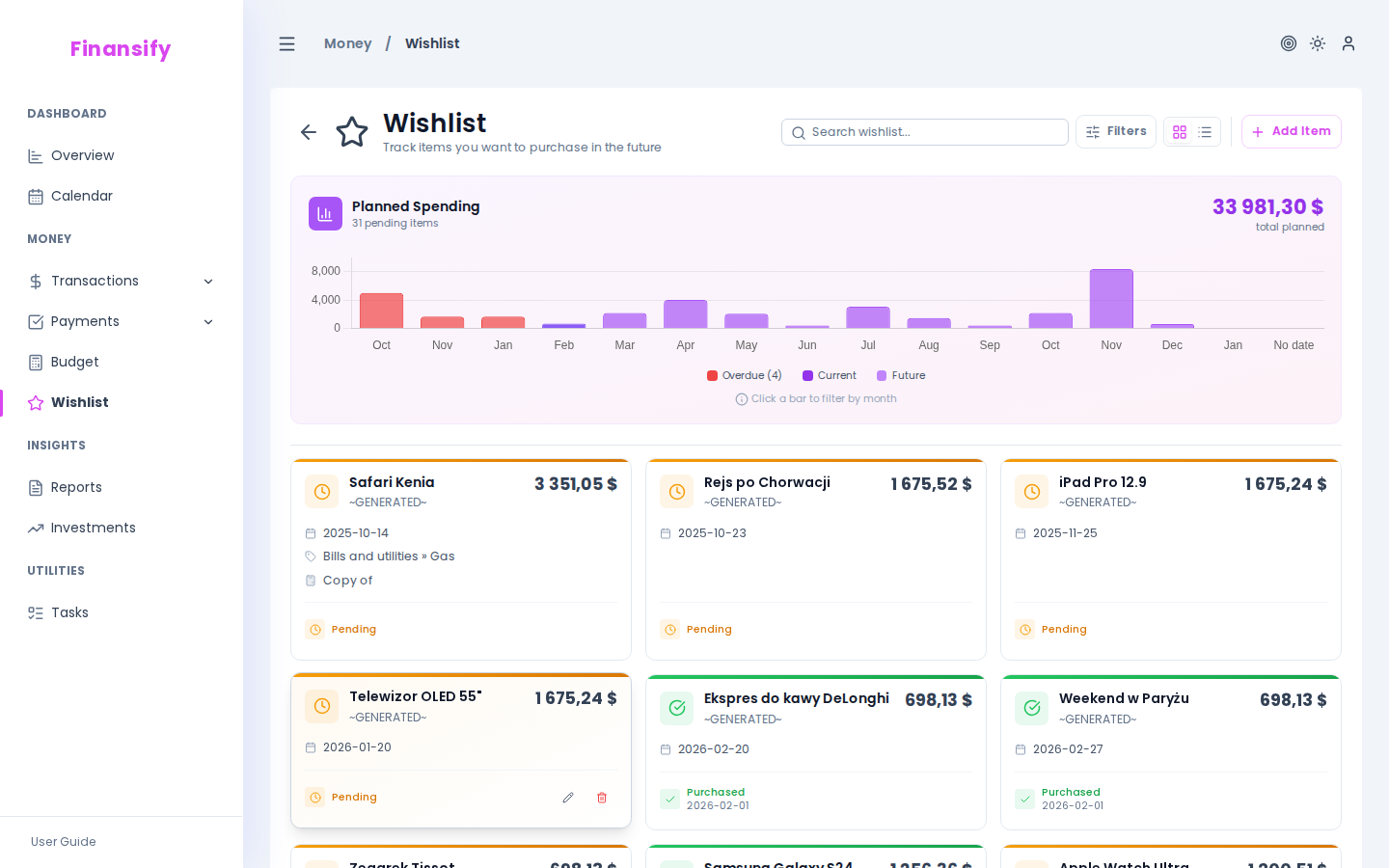
On the wishlist page you can see all your planned purchases as cards or a table.
Each card has a colored side bar:
- Amber — pending item (not yet purchased)
- Green — purchased item
The card shows:
- Name and notes (abbreviated)
- Amount
- Target date
- Category (with path)
- Budget link
- External link (if provided) — e.g. a link to the product in a store
 Wishlist
In advanced mode on desktop a timeline chart also appears above the list — a visualization of planned purchases spread over time (past / current / future / overdue).
Adding an item
- Click New item
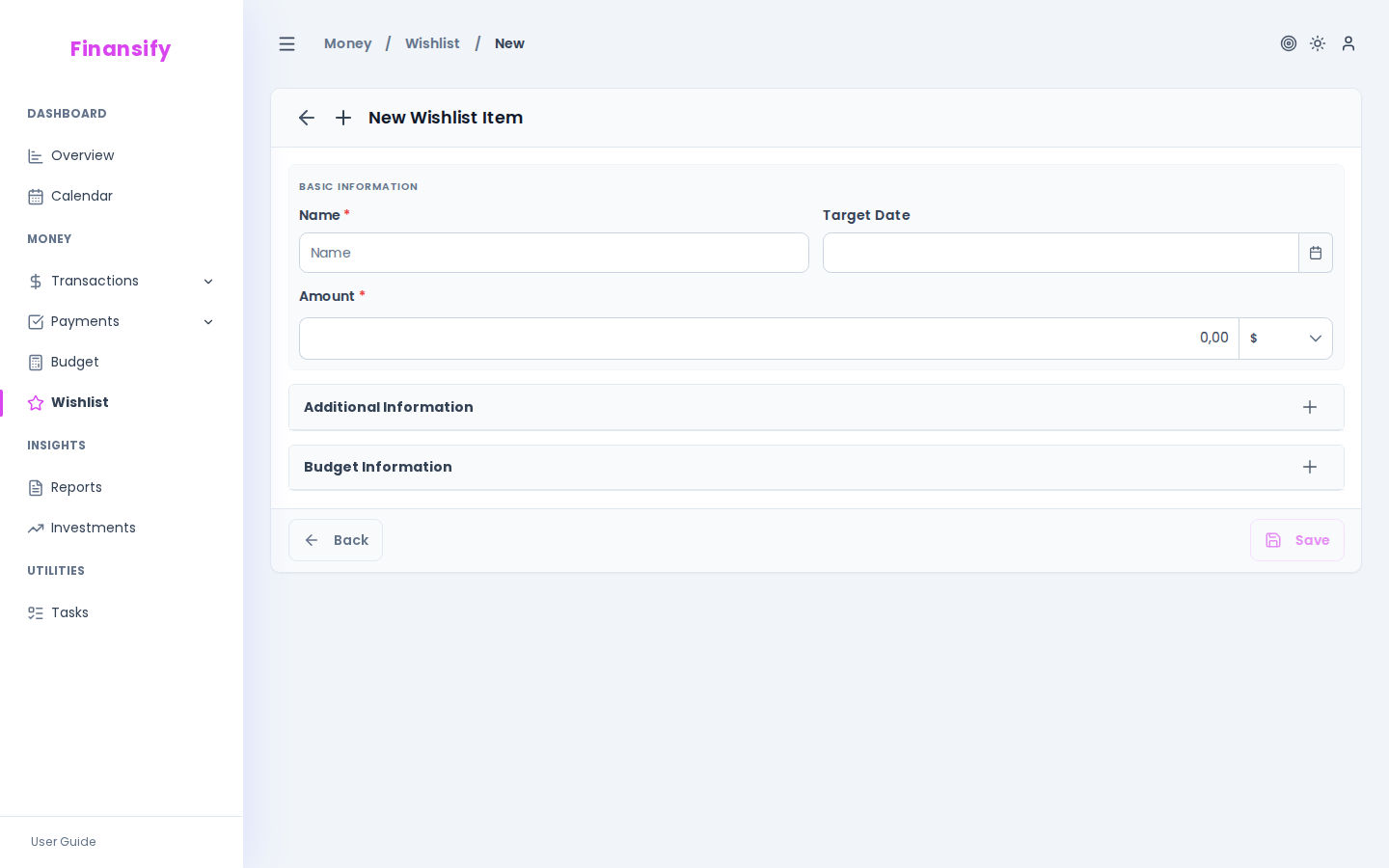
- Fill in the form:
| Field | Description | Required |
|---|---|---|
| Name | What you want to buy, e.g. "iPhone 16" | Yes |
| Amount + currency | How much it costs | Yes |
| Target date | By when you want to buy it | No |
| Budget | Which budget you plan to pay from | No |
| Category | Transaction category (when you buy it) | No |
| URL | Link to the product (opens in a new tab) | No |
| Notes | Additional information | No |
 New wishlist item form
Linking to a budget
If you want the planned purchase to count toward a budget — select a budget from the list. The item will appear in the budget details under the "Wishlist items" section.
Marking as purchased
When you buy an item from the list:
- Open the item and click Edit
- Enable the Purchased toggle
- Enter the purchase date
- Optionally: link to a transaction — search for the existing purchase transaction
After marking as purchased, the item changes color to green and moves to the purchased section.
 Wishlist — purchased item
Filtering
| Filter | What it does |
|---|---|
| Search | Search by name |
| Status | Pending / Purchased |
| Date range | Target date from-to |
Items on the calendar
Wishlist items that have a target date set appear on the calendar as amber markers. This way you can see approaching planned purchases in the context of other financial events.
Tips
- Set a target date — even if it's not precise. It helps with planning and visibility on the calendar.
- Link to a budget — this way you see planned purchases in the context of a budget and know how much you have left after accounting for wishes.
- Use the URL link — add a link to the product in a store so you can quickly return to the offer and compare prices.
See also:
- Budgets — linking wishlist items to budgets
- Transactions — linking a purchase to a transaction
- Calendar — target dates on the calendar