Transactions
Transactions are the heart of Finansify — every expense, every income, every transfer. This is where you record your daily financial operations and have full control over them.
Transaction List
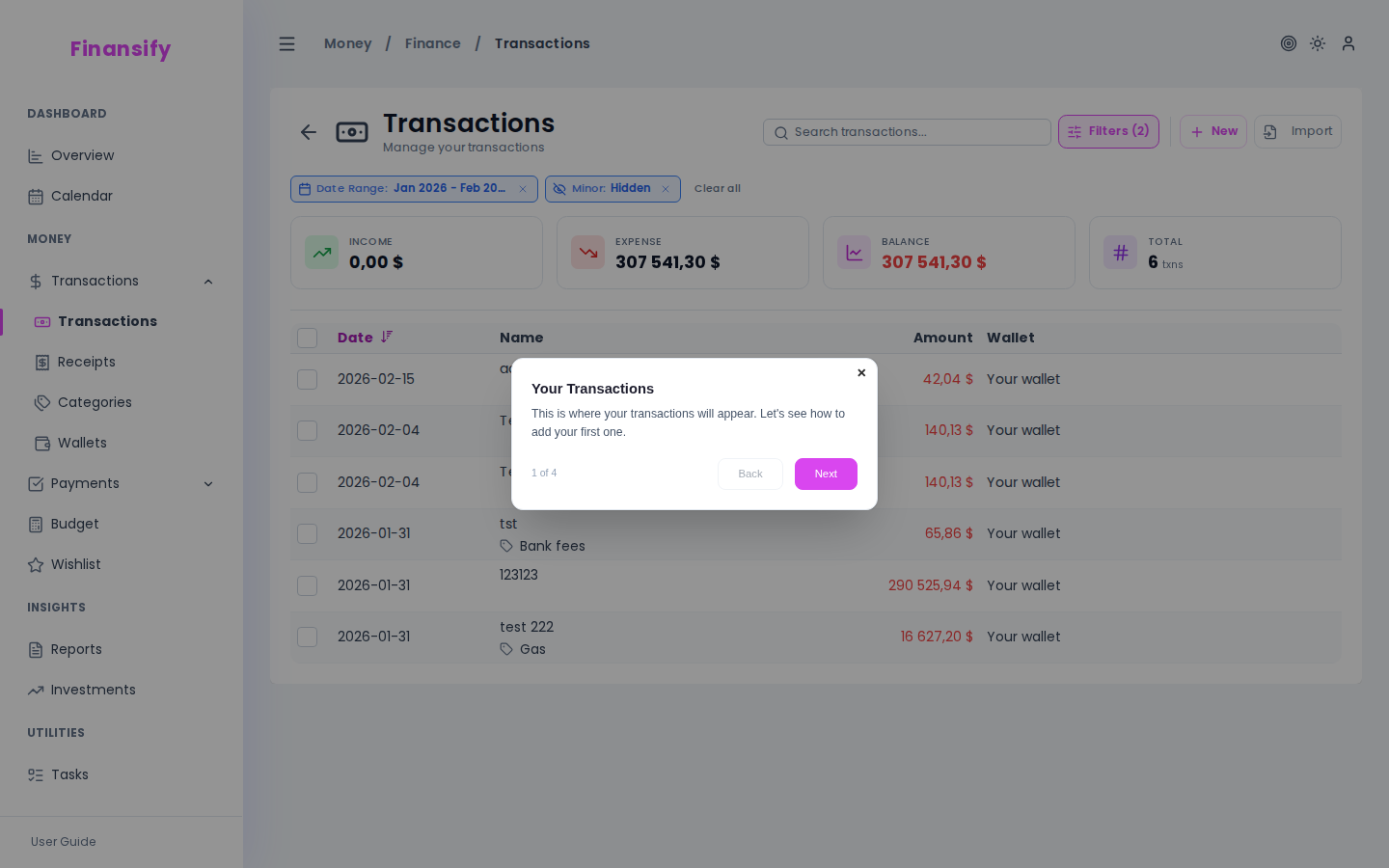
The transactions page shows all your transactions in the form of:
- Desktop — a table with pagination (sortable by date and amount)
- Mobile — cards with infinite scrolling
Each transaction in the list shows: date, name (with category and status icons), amount (green = income, red = expense), and wallet.
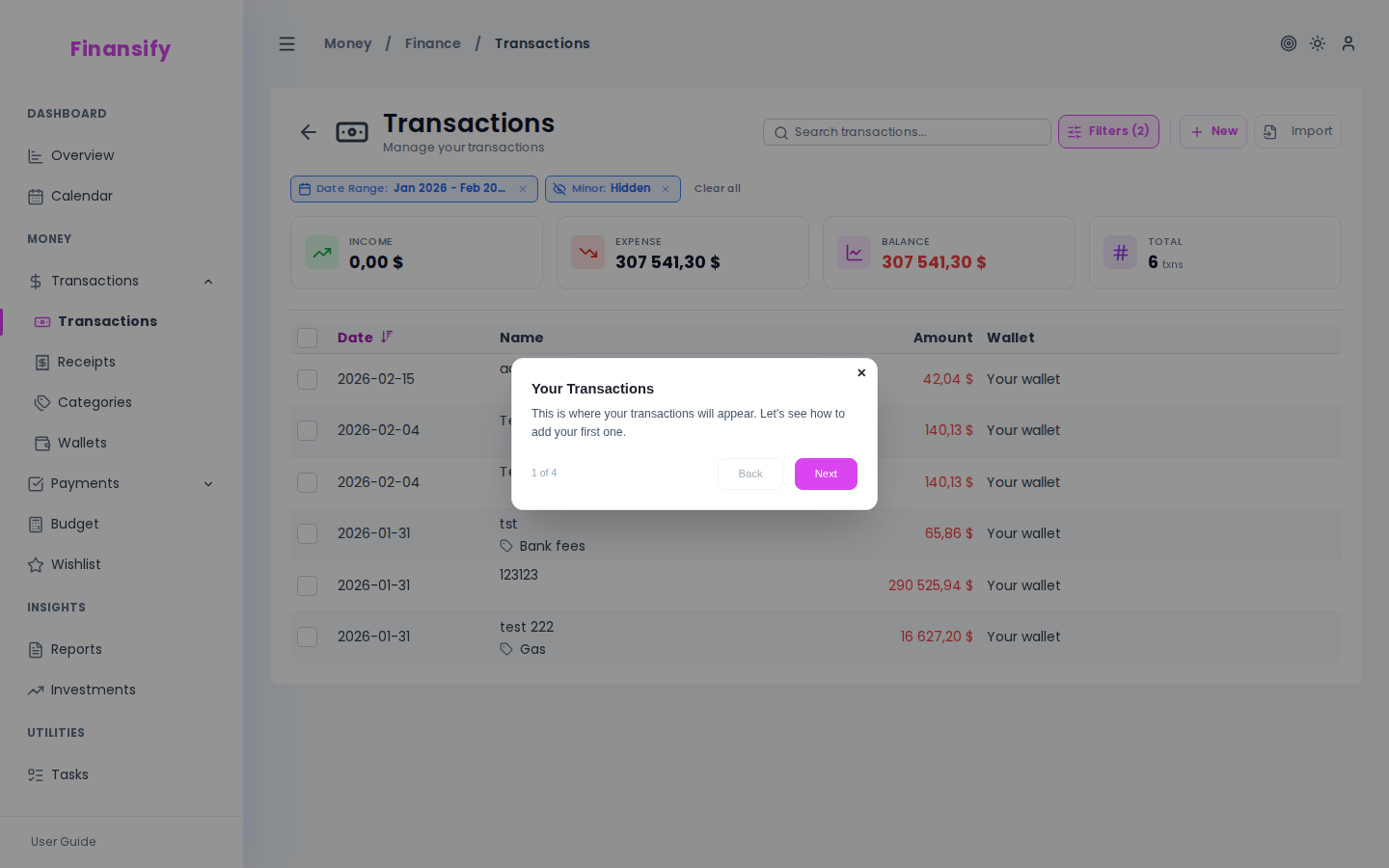 Transaction list — desktop
On mobile, transactions are displayed as cards — you scroll down and more load automatically.
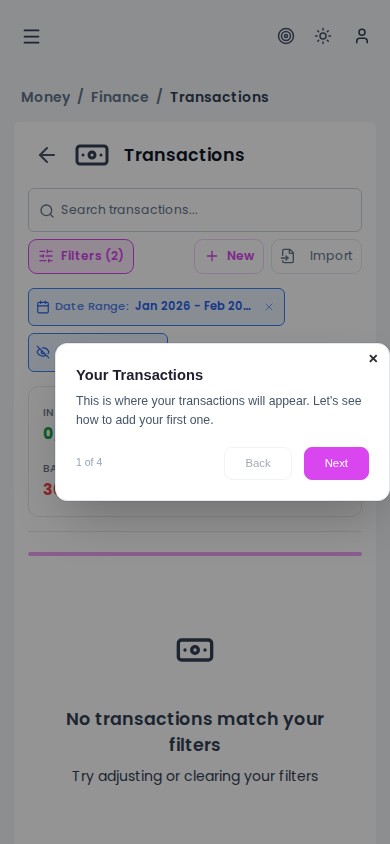 Transaction list — mobile
Adding a Transaction
- On the transactions page, click New transaction
- Fill in the form:
Basic Fields
| Field | Description | Required |
|---|---|---|
| Name | Transaction description, e.g., "Grocery store", "Salary" | Yes |
| Date | When the payment occurred (max = today) | Yes |
| Operation type | Expense (default) or Income | Yes |
| Amount | Transaction amount + currency | Yes |
| Category | Select from the category list (with search) | No |
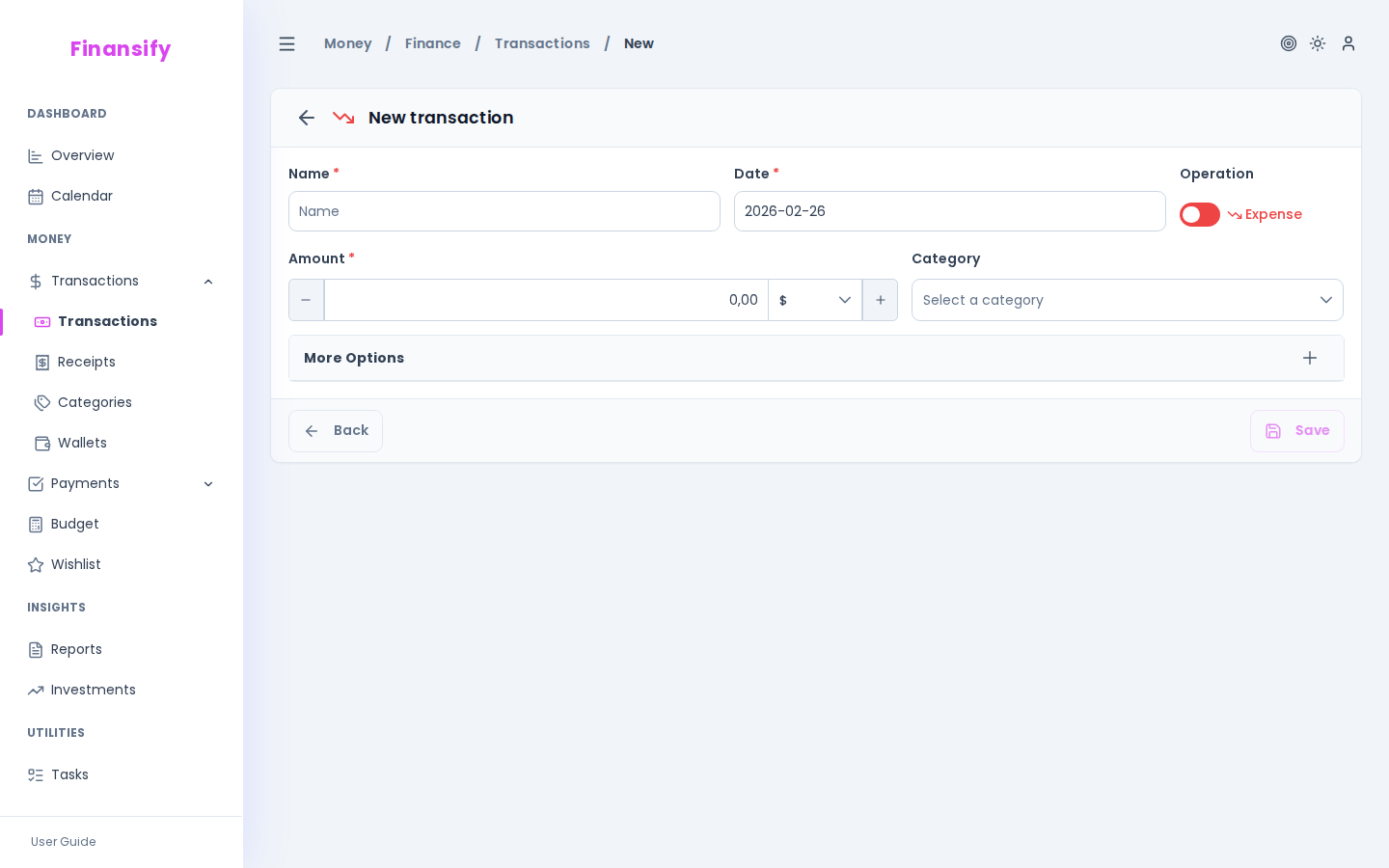 New transaction form
More Options
Click More options to expand additional fields:
| Field | Description |
|---|---|
| Wallet | Select a wallet (visible when you have more than 1 wallet) |
| Tags | Add existing tags or create new ones (with color selection) |
| Notes | Any comment about the transaction |
| Minor transaction | Toggle — hides the transaction from statistics (e.g., internal transfers) |
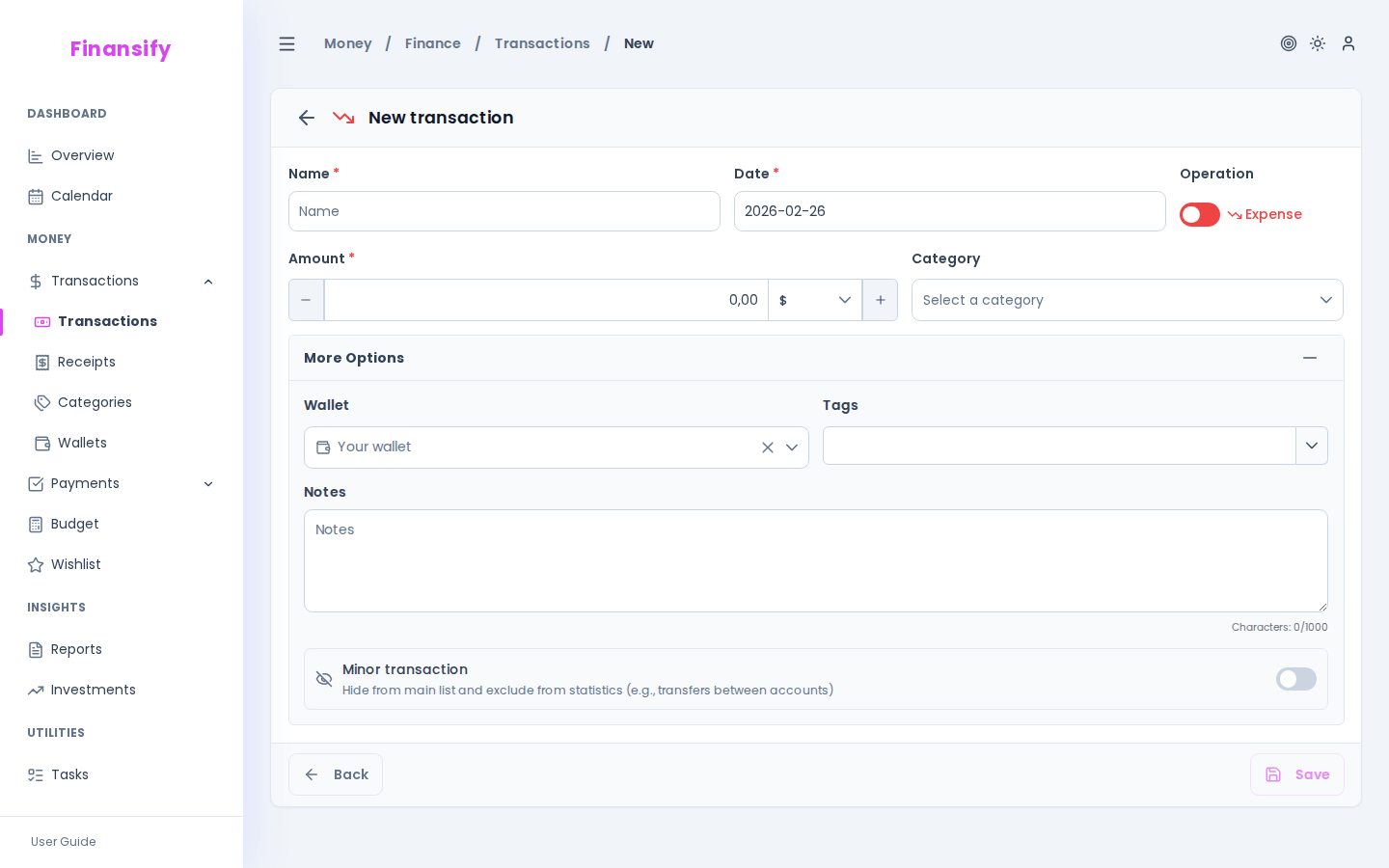 Transaction — more options
Quick Amount Adjustment
Next to the amount field, you have +50 and -50 buttons — useful for quickly adjusting the amount without typing manually.
Transaction Details
Click on a transaction to see its full details:
- Amount with a colored accent (green = income, red = expense)
- Name and payment date
- Wallet and category (with path, e.g., "Food → Restaurants")
- Tags and notes
- Linked payment — if the transaction is connected to a recurring payment, you'll see payment details with the option to unlink
- Receipts — a thumbnail carousel with attached receipts; click to open the full-screen gallery
Special statuses:
- Awaiting verification — transaction imported from CSV, not yet confirmed
- Minor transaction — hidden from statistics
 Transaction details
Editing and Deleting
- Editing — opens the form with pre-filled data; change what you need and save
- Deleting — after clicking "Delete," a confirmation dialog appears
Splitting a Transaction
Have a single transaction that covers multiple things? For example, shopping at the grocery store: food + household supplies. You can split it:
- Open the transaction details
- Click Split
- Add sub-transactions — for each one, enter a name, amount, and category
- New items default to the amount = unallocated remainder
- Click Save — the original transaction will be replaced by the sub-transactions
[VIDEO: Screencast (~20s) — opening a transaction → clicking "Split" → adding 2 sub-transactions with different categories → saving]
Bulk Operations
When you want to change many transactions at once — select them and use bulk operations.
Selecting
- Desktop — checkboxes in the first column of the table
- Mobile — long-press on a transaction
After selecting, a bulk operations bar appears at the top of the screen with a counter of selected items.
Available Bulk Operations
Click on the bar to open a side panel with options:
| Operation | What it does |
|---|---|
| Change category | Assign the selected category to all selected transactions |
| Change wallet | Move transactions to a different wallet |
| Add tags | Add tag(s) to selected transactions |
| Mark as minor | Hide from statistics |
| Delete | Delete all selected transactions |
 Bulk operations bar
Minor Transactions
A minor transaction is one you want to record but don't want to affect statistics and charts. Typical uses:
- Transfers between your own accounts (e.g., from checking to savings)
- Refunds and corrections
- Technical transactions
Minor transactions are marked with a crossed-out eye icon and are included in the list by default, but not in summaries.
Awaiting Verification
Transactions imported from CSV have the status "Awaiting verification". This signals that you should review them — make sure the amount, category, and name are correct. After reviewing, you can approve them.
Receipts on Transactions
You can attach one or more receipts to each transaction:
- In the transaction list, click the paperclip icon (if you see a badge with a number — it means receipts are already attached)
- A side panel with attachments opens
- Drag and drop a file or click "Browse"
- Accepted formats: JPG, PNG, PDF
 Attachments panel
Learn more about AI receipt processing in the Receipts section.
Filters
The transaction list has an extensive filter system. Active filters are displayed as colored pills below the bar — you can quickly remove each one by clicking "×".
Available Filters
| Filter | What it does |
|---|---|
| Search | Search by transaction name |
| Operation | Show only income or only expenses |
| Date range | Select month/year — from-to |
| Validation status | Show only transactions awaiting verification |
| Amount range | Filter by min-max amount |
| Wallet | Show transactions from a selected wallet |
| Currency | Filter by currency |
| Category | Select a category (with hierarchical path) |
| Budget | Show transactions included in a selected budget |
| Minor transactions | All / only minor / exclude minor |
| Import | Show transactions from a specific CSV import |
 Active filters
Filter Customization
Don't need all the filters? You can choose which filters should be visible — click the filter settings icon and check only the ones you use regularly.
Transaction Statistics
In advanced mode, above the transaction list you'll see a summary:
- Total income — combined income from active filters
- Total expenses — combined expenses
- Transaction count — how many transactions match the filters
- Average transaction — average amount
See also:
- Categories — organizing transactions into categories
- Receipts — AI receipt scanning
- CSV Import — importing transactions from a bank
- Wallets — wallets assigned to transactions
- Budgets — budgets linked to transactions