Categories
Categories help you organize your expenses and income. Instead of looking at hundreds of transactions, you can clearly see: how much you spent on food, how much on transport, how much on entertainment.
How do categories work?
Categories have a tree structure — parent (main) categories can have subcategories:
Food (main category)
├── Groceries
├── Restaurants
├── Cafes
└── Eating out

Transport
├── Fuel
├── Public transit
└── Uber / Bolt
This way you can see both the total spending on "Food" and a detailed breakdown into groceries, restaurants, etc.
Category list
On the categories page you can browse categories in two views:
Card view
Each main category is displayed as an expandable card. Click to see its subcategories.
Tree view (table)
A hierarchical table with expandable/collapsible categories. Useful when you have many categories.
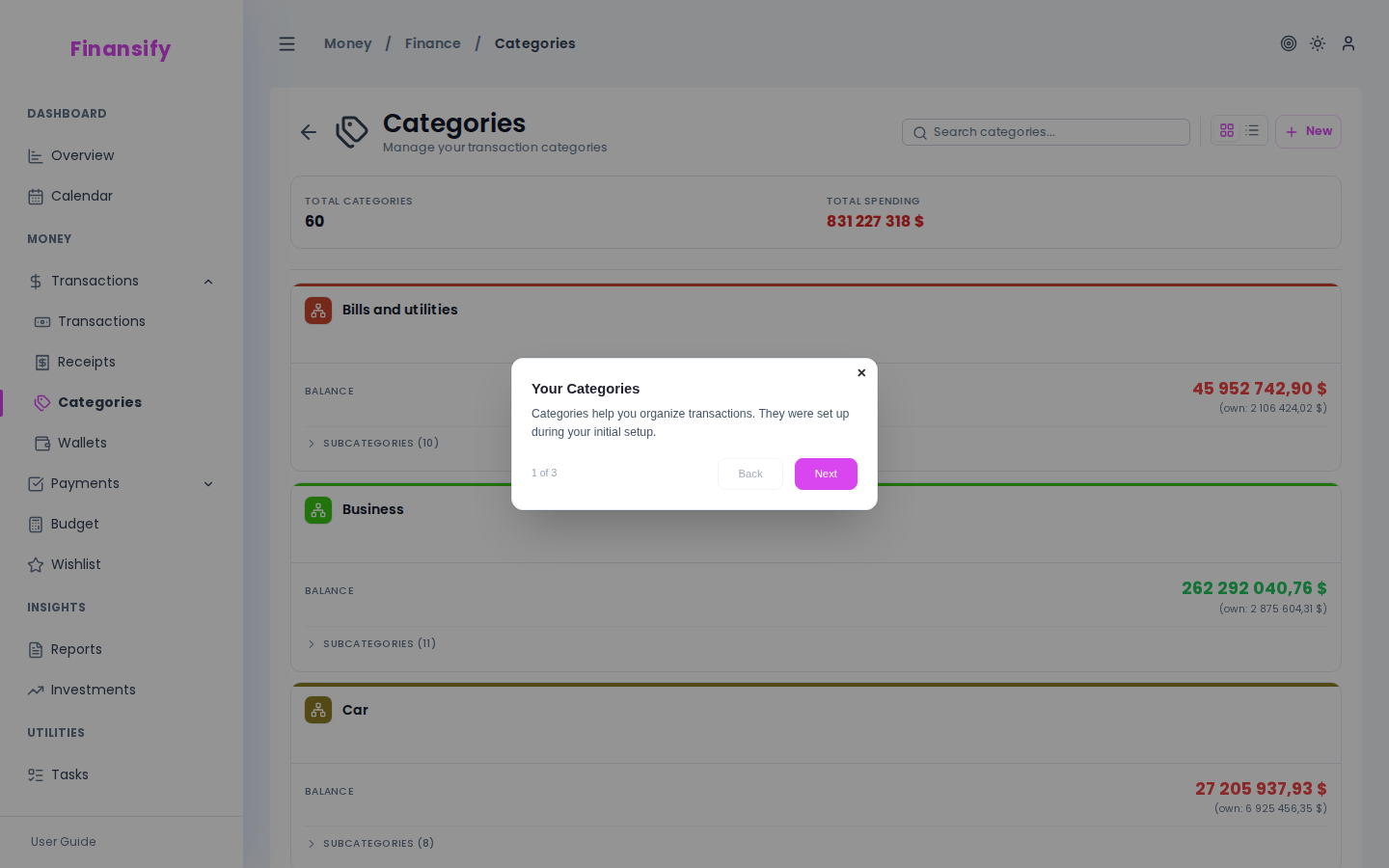 Category tree
Both views support search — type part of a name and the list filters in real time (subcategories are searched too).
In advanced mode a summary appears above the list: total number of categories and total spending across all categories.
Creating a category
- Click New category
- Fill in the form:
| Field | Description | Required |
|---|---|---|
| Name | E.g. "Food", "Transport", "Hobbies" | Yes |
| Color | Choose an icon color (main categories only) | Yes* |
| Parent category | Select if you are creating a subcategory | No |
| Tags | Add tags to the category | No |
| Notes | Additional information | No |
*Subcategories automatically inherit a color variant from their parent (slightly lighter for each successive subcategory).
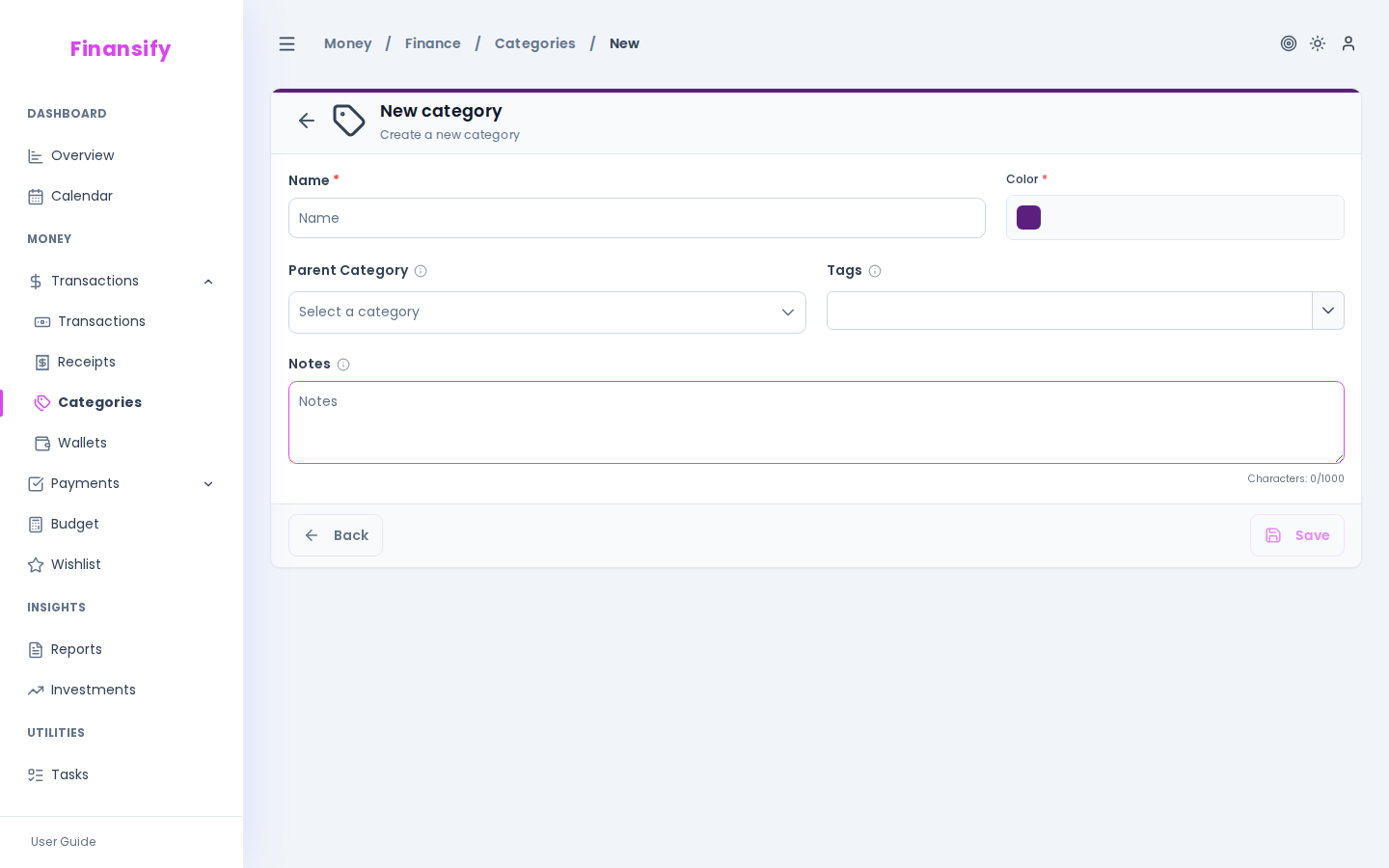 New category form
Presets from the wizard
If you chose a category preset in the welcome wizard, you already have a ready-made set. You can modify it however you like — add, remove, rename, and change colors.
Category colors
Colors help you visually distinguish categories — in charts, transaction lists, and budgets.
- Main categories — you choose the color manually from the palette
- Subcategories — the color is calculated automatically as a lighter variant of the parent's color. Each successive subcategory is slightly lighter
This way transactions in the "Restaurants" subcategory have a similar color to the "Food" category but are clearly distinguishable from it.
Editing and deleting
Editing
Click on a category, then Edit — change the name, color, or parent assignment.
Deleting
When deleting a category you must decide what to do with the transactions assigned to it:
- Transactions will lose their assigned category (they become "uncategorized")
- Subcategories will also be deleted
 Category deletion dialog
Category details
Click on a category to see its full information:
- Balance (total amount of transactions in this category)
- Color and icon
- Tags
- List of transactions assigned to this category
Tips
- Don't overdo subcategories — 2 levels of hierarchy (main + subcategory) is usually enough. An overly detailed breakdown makes analysis harder.
- Use colors wisely — similar categories (e.g. everything related to housing) can have similar colors.
- Tags vs subcategories — if you want to analyze spending "across" categories (e.g. "everything related to vacation"), use tags instead of creating new subcategories. Tags are more flexible.
See also:
- Transactions — assigning categories to transactions
- Budgets — budget sub-limits per category
- Reports — spending analysis by tags (Premium)
- Welcome wizard — category presets