Calendar
The Calendar is a single place where you can see all your financial events — transactions, budgets, payments, wishlist items, and tasks. Each event type has its own color, so at a glance you can see what's happening on any given day.
What's Shown on the Calendar?
The Calendar collects data from various app modules and presents them as colored markers:
| Event type | Color | What it shows |
|---|---|---|
| Transactions | Green (income) / Red (expense) | Recorded transactions |
| Budgets | Purple | Budget duration periods |
| Payments | Pink | Upcoming and paid recurring payments |
| Wishlist | Amber | Target dates of wishlist items |
| Tasks | Blue | Task deadlines |
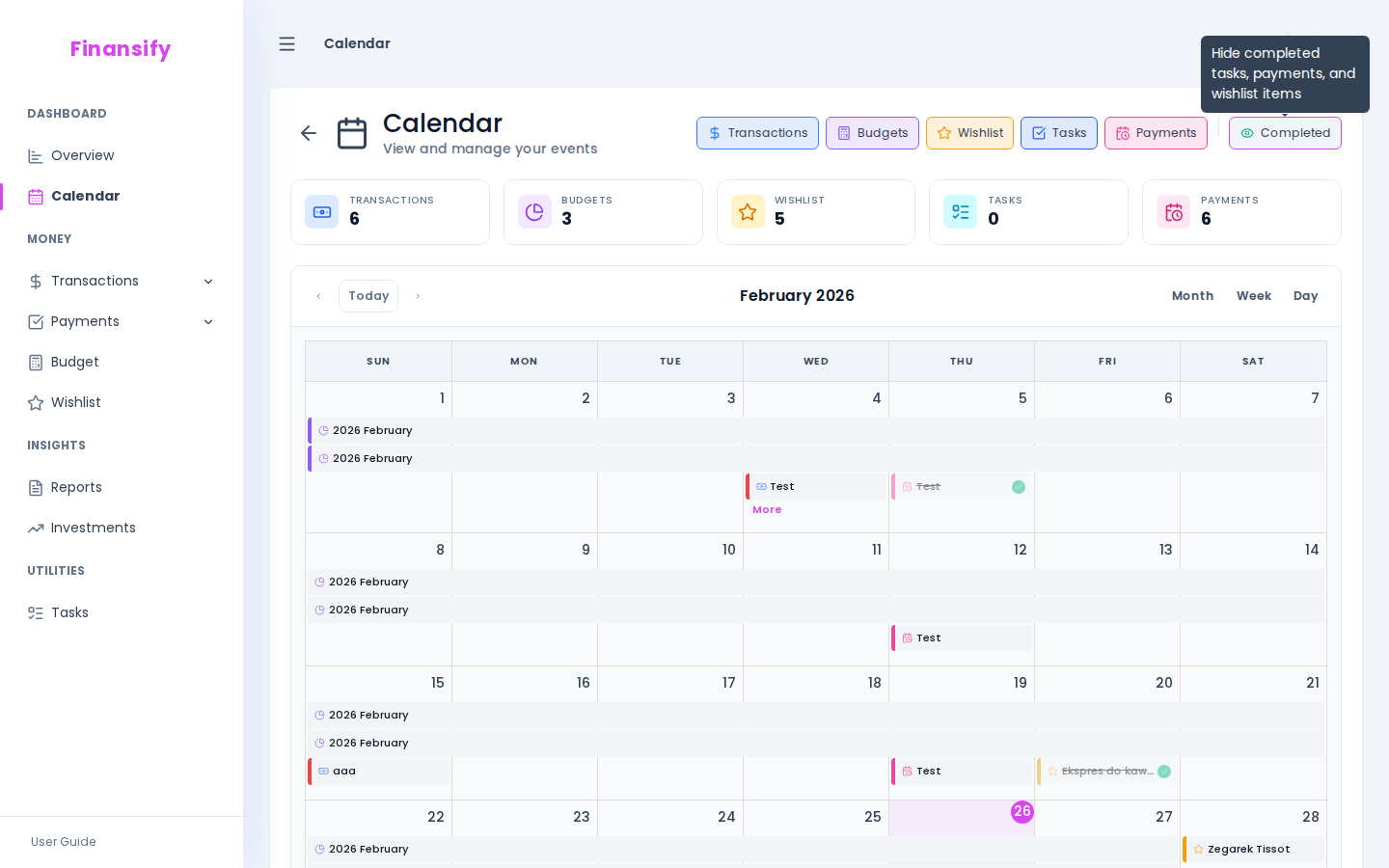 Calendar — month view
Calendar Views
You can switch between three views:
Month
The classic calendar view — an entire month with colored dots/markers on individual days. Best for a general overview.
Week
A more detailed view — you see event names, not just colored dots. Useful when planning the upcoming week.
Day
A full list of events for the selected day with all the details.
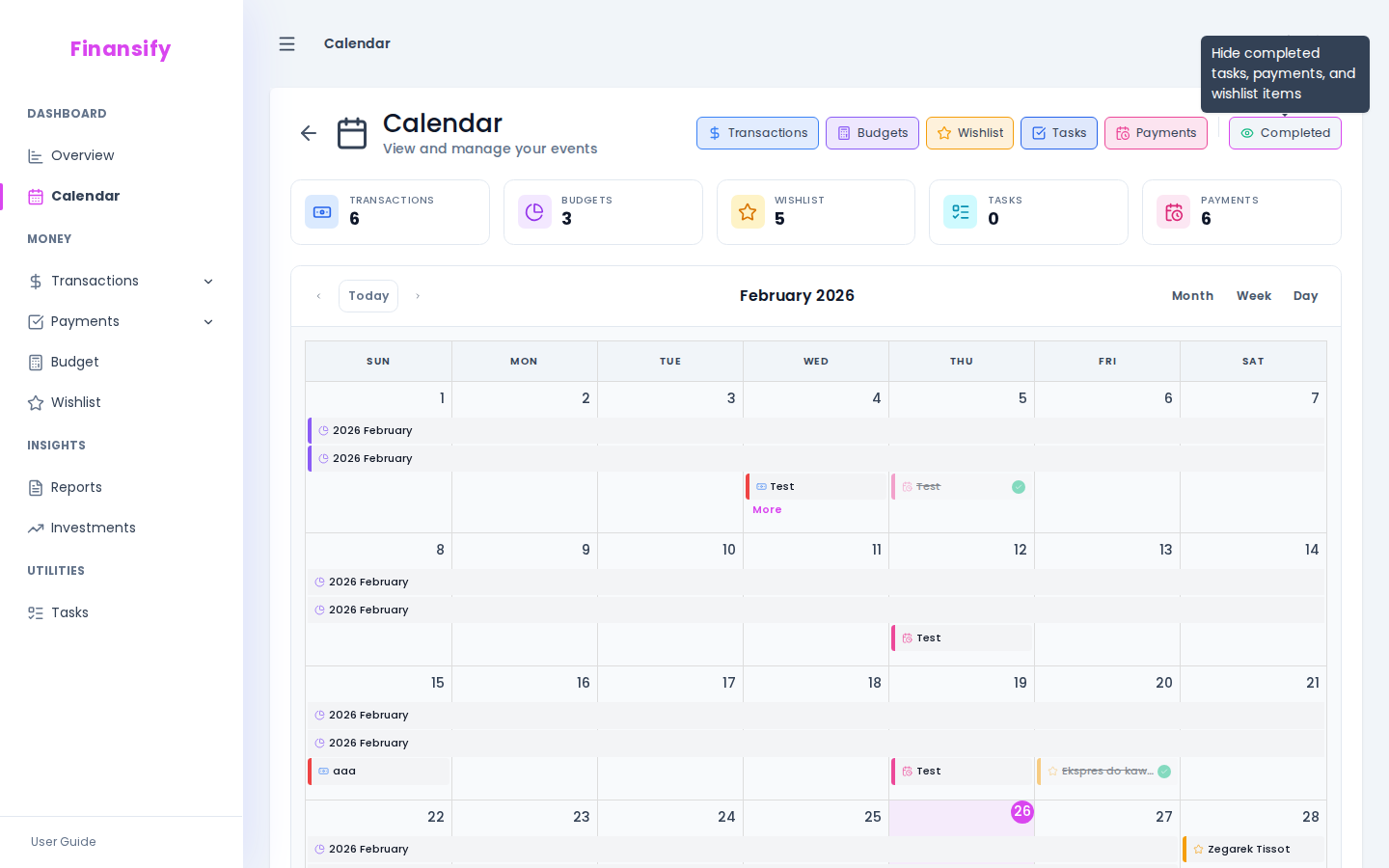 Calendar — view switcher
Filtering Events
Don't want to see everything at once? Use filters to choose which event types should be displayed:
- Click on the filter options near the calendar
- Check or uncheck individual event types (transactions, budgets, payments, wishlist, tasks)
- The calendar will refresh automatically
You can also enable the hide completed option — it hides already paid payments and completed tasks to keep the calendar cleaner.
 Calendar — filter panel
Clicking on Events
Clicking on a Day
On desktop, clicking on an empty day opens quick add — you can immediately create a new transaction, task, or other event with the date automatically set.
On mobile, clicking on a day opens an event list for that day in a dialog.
Clicking on an Event
Clicking on a specific event (e.g., a transaction or payment) opens a detail panel with information about that event and the ability to navigate to its full view.
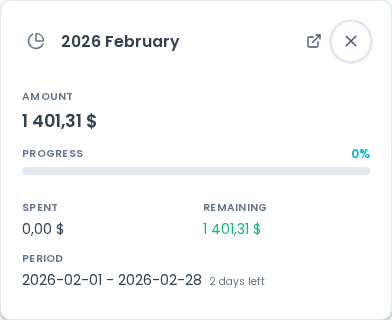 Calendar — event detail
Calendar on Mobile
On mobile devices, the calendar works slightly differently:
- In the month view, events appear as colored dots (without names) — to save space
- Clicking on a day opens a full-screen list of that day's events
- Swiping navigates between months
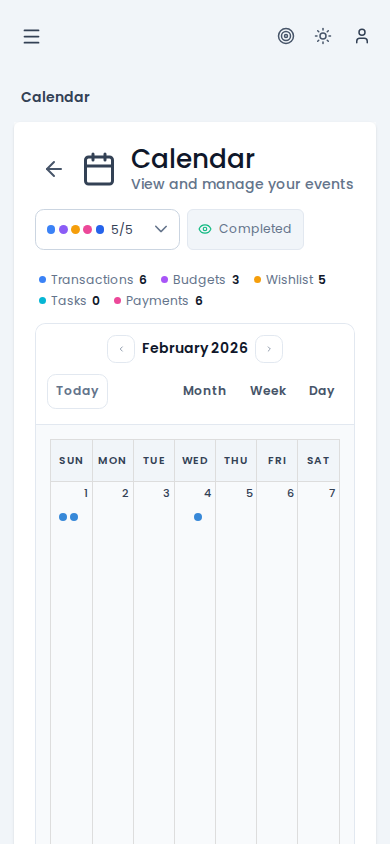 Calendar — mobile view
Calendar Statistics
In advanced mode, statistics cards are displayed above the calendar — a summary of the number of events of each type within the currently visible date range.
See also:
- Transactions — transaction events on the calendar
- Recurring Payments — payments visible on the calendar
- Tasks — tasks with deadlines on the calendar
- Wishlist — target dates on the calendar