Budgets
A budget is your spending plan for a specific period. You set a limit, assign categories, and watch how you're doing. Finansify shows you in real time how much you've spent and how much you still can.
What is a budget in Finansify?
In Finansify a budget is an amount for a given period (e.g. 3,000 PLN for March). It's not a "fixed monthly budget" — you decide what date range it covers. It can be one month, two weeks, or an entire quarter.
A budget tracks your spending in selected categories and shows how much of the limit you've already used.
Budget list
On the budgets page you can see all your budgets as cards or a table. Each card has a colored side bar indicating its status:
| Status | Color | Meaning |
|---|---|---|
| Active | Green | Budget is currently in effect |
| Upcoming | Blue | Budget will start in the future |
| Ended | Gray | Budget period has passed |
Each budget card shows:
- Name and status
- Date range and how many days remain
- Limit amount
- Progress bar — green (<80%), yellow (80–99%), red (>=100%)
- Categories covered by the budget (max 3 visible + "+N")
- Budget health indicator (active budgets only)
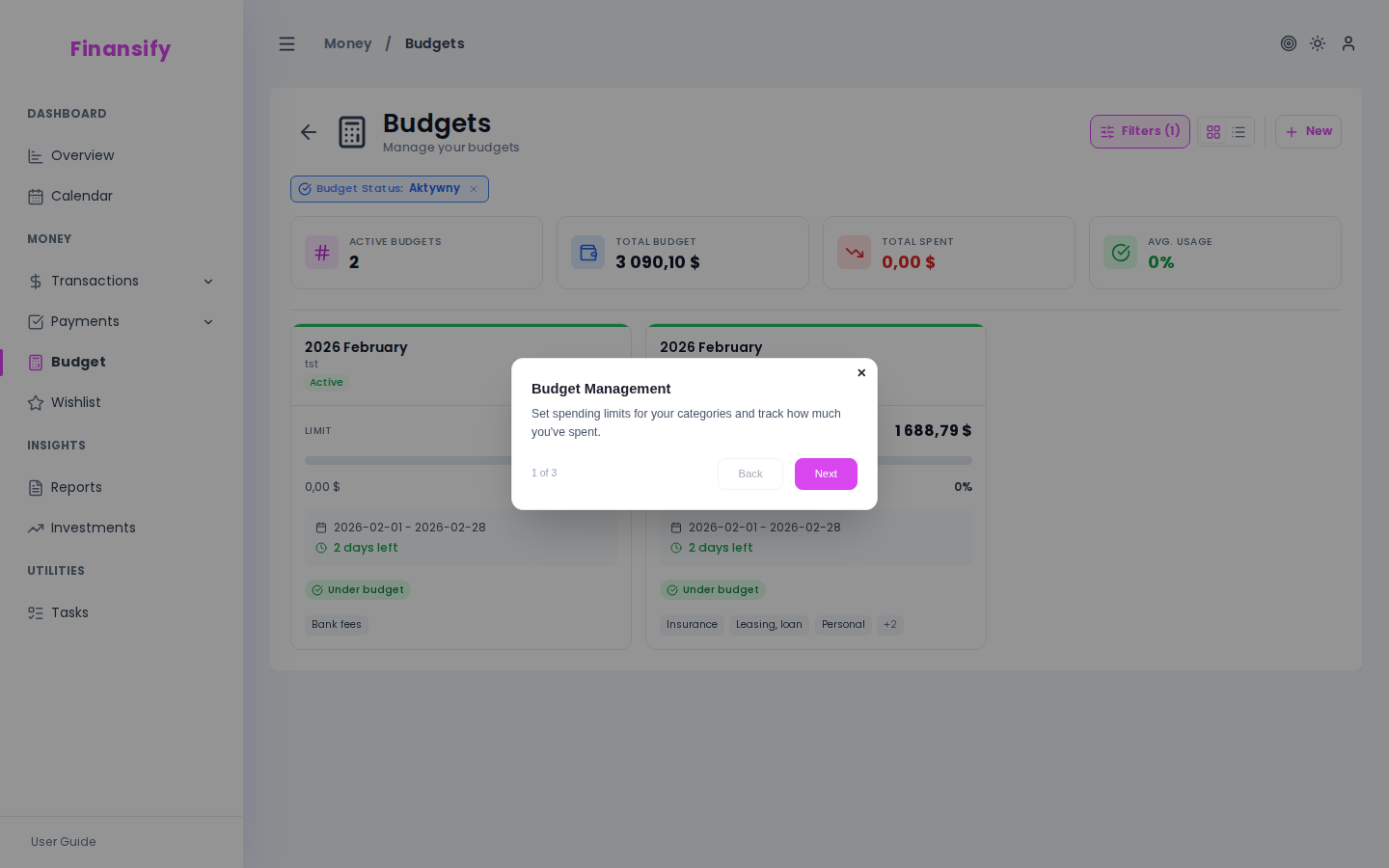 Budget list
In advanced mode a summary appears above the list: number of active budgets, total budget amount, total spending, average utilization %.
Creating a budget
- On the budgets page click New budget
- Fill in the form:
Basic fields
| Field | Description | Required |
|---|---|---|
| Name | Optional — automatically generated from dates (e.g. "2025 March") | No |
| Amount | Budget limit, e.g. 3,000 PLN | Yes |
| Currency | Budget currency | Yes |
| Date range | Start and end date | Yes |
Date presets
Instead of picking dates manually, you can use quick presets:
- This month — from the 1st to the last day of the current month
- Next month — the following month
- Continue from last — automatically calculates the next period based on the duration of the last budget
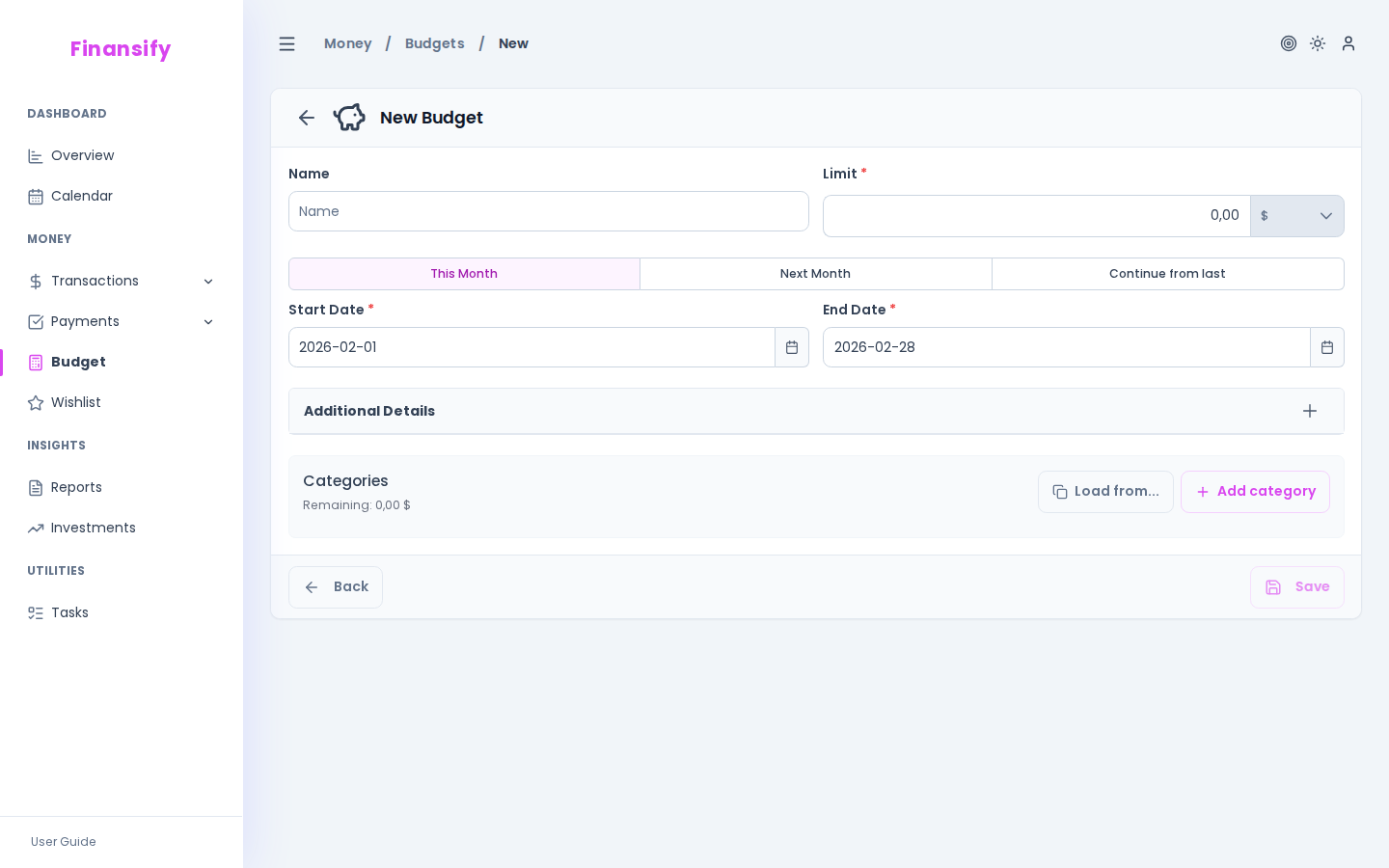 New budget form
Assigning categories (sub-limits)
This is the most important part! You can split a budget into limits per category:
- Click Add category
- Choose a category from the list
- Set a limit for that category
For example: a 3,000 PLN budget for March, of which:
- Food: 800 PLN
- Transport: 300 PLN
- Entertainment: 200 PLN
- Remainder (1,700 PLN) — unallocated
The sum of sub-limits cannot exceed the budget amount. If you try — you'll see an error message.
 Category sub-limits
Additional options
In the "Additional details" section:
- Notes — an extra comment
- Excluded tags — transactions with these tags will not count toward the budget. Useful for excluding internal transfers tagged as "transfer", for example.
Budget details
Click on a budget to see full information:
Summary
Four cards at the top:
- Budget — total amount
- Spent — how much has been spent from the budget
- Remaining / Exceeded — how much you can still spend (or by how much you've exceeded)
- Unallocated — amount not assigned to any category
Main progress bar
A large bar showing overall budget utilization in percent (with colors: green -> yellow -> red).
Category breakdown
Each budget category is displayed with:
- Category path (e.g. "Food -> Restaurants")
- Amount spent / limit
- Amount remaining
- Individual progress bar
 Budget details
Budget transactions
A link to the list of transactions that count toward this budget — click to see details.
Wishlist items
If you have items from the wishlist linked to this budget, you'll see them grouped by category.
Budget health indicator
Active budgets have a health indicator that tells you about your spending pace:
- On track — you're spending according to plan
- Near limit — you're approaching the limit
- Exceeded — spending has exceeded the budget
- Faster pace — you're spending faster than the time proportion suggests
Duplicating a budget
Want to create a similar budget for the next month? Click Duplicate — the form will be filled with data from the selected budget (with a new date range). Just review the amounts and save.
Filtering budgets
| Filter | What it does |
|---|---|
| Status | Active / Upcoming / Ended |
| Year | Show budgets from a selected year |
Limit on the Free plan
On the Free plan you can have up to 2 active budgets (e.g. a needs budget + a wants budget).
Premium: On the Premium plan there is no limit on the number of budgets.
See also:
- Categories — categories used in budgets
- Transactions — transactions counted toward budgets
- Wishlist — planned purchases in a budget
- Subscription — budget limits on the Free plan