Appearance
Here you customize the look and behavior of the Finansify interface.
Go to Profile -> Settings -> Appearance.
Theme (light / dark)
Choose how the app looks:
- Light — classic light theme
- Dark — dark background, light text — easier on the eyes in the evening
- System — automatically adapts to your operating system settings
 Theme selection
Simple vs advanced mode
This is the most important setting affecting what you see in the app:
Simple mode
Ideal for getting started. Shows only basic elements — less information, cleaner interface.
What is hidden in simple mode:
- Summary statistics on list pages (total income/expenses, averages, etc.)
- "Money Trend" widget on the Dashboard
- "Upcoming Payments" widget on the Dashboard
- Calendar statistics
- Monthly chart on the payments page
Advanced mode
Full view with all statistics, charts, and summaries. For users who want to see more data and have full control.
What advanced mode adds:
- Summary statistics on pages: transactions, wallets, categories, budgets, payments, wishlist
- Additional widgets on the Dashboard
- Calendar statistics
- Charts on list pages
 Advanced mode toggle
Interface colors
You can customize the app's color scheme:
- Primary color — accent color of the interface (buttons, links, highlights)
- Surface color — background of cards and panels
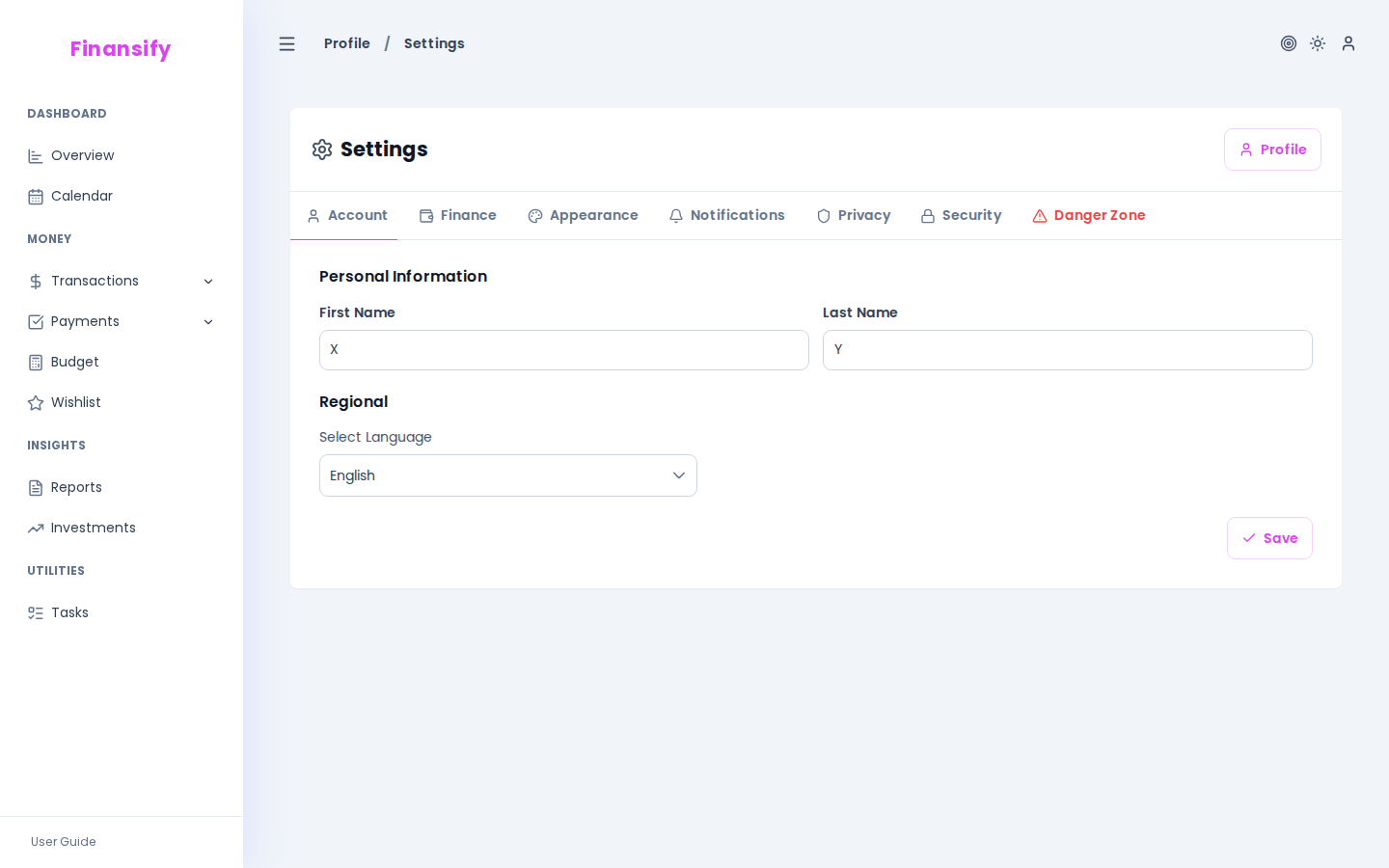 Color customization
Menu layout
Choose how the sidebar menu works:
- Static — the menu is always visible on the side of the screen (desktop)
- Overlay — the menu hides and appears when you click the hamburger icon
On mobile, the menu always works as an overlay, regardless of the setting.
See also: