Wallets
A wallet is where you keep your money — a bank account, cash in your pocket, a savings account. In Finansify, each wallet tracks its balance separately, and you see the total balance on the Dashboard.
Wallet Types
Finansify supports three wallet types:
| Type | Icon | When to use |
|---|---|---|
| Bank | Bank building | Bank account — you can select a bank and enter an IBAN |
| Cash | Banknote | Physical cash, physical wallet |
| Other | Wallet | Everything else — investment account, PayPal, cryptocurrency, etc. |
Wallet List
On the wallets page, you can see all your wallets. By default, they are displayed as cards — on desktop, you can switch to table view.
Each wallet card shows:
- Wallet name
- Type (icon + label)
- Balance
- Bank name (for bank wallets)
- Last 4 digits of the IBAN (masked)
- A star indicating the primary wallet
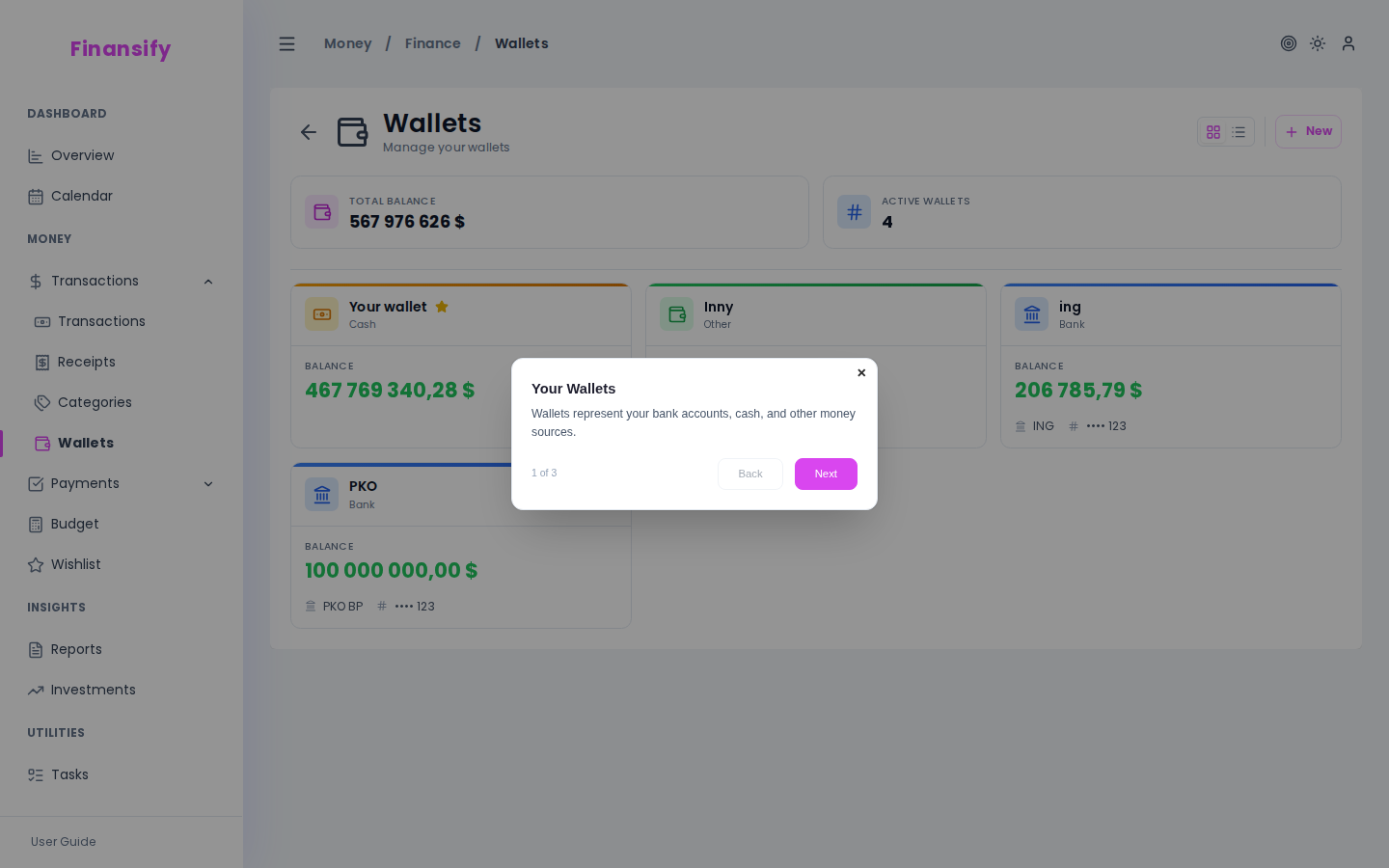 Wallet list
In advanced mode, above the wallet list you'll also see statistics: total balance across all wallets and the number of wallets.
Creating a Wallet
- On the wallets page, click New wallet
- Fill in the form:
| Field | Description | Required |
|---|---|---|
| Name | E.g., "Main account", "Savings", "Cash" | Yes |
| Initial balance | How much money is currently in the account | Yes |
| Primary wallet | Mark as the default wallet (yellow toggle) | No |
| Type | Bank / Cash / Other | Yes |
| Bank | Select a bank from the list (only for "Bank" type) | No |
| IBAN / account number | Account number (only for "Bank" type) | No |
| Notes | Additional information | No |
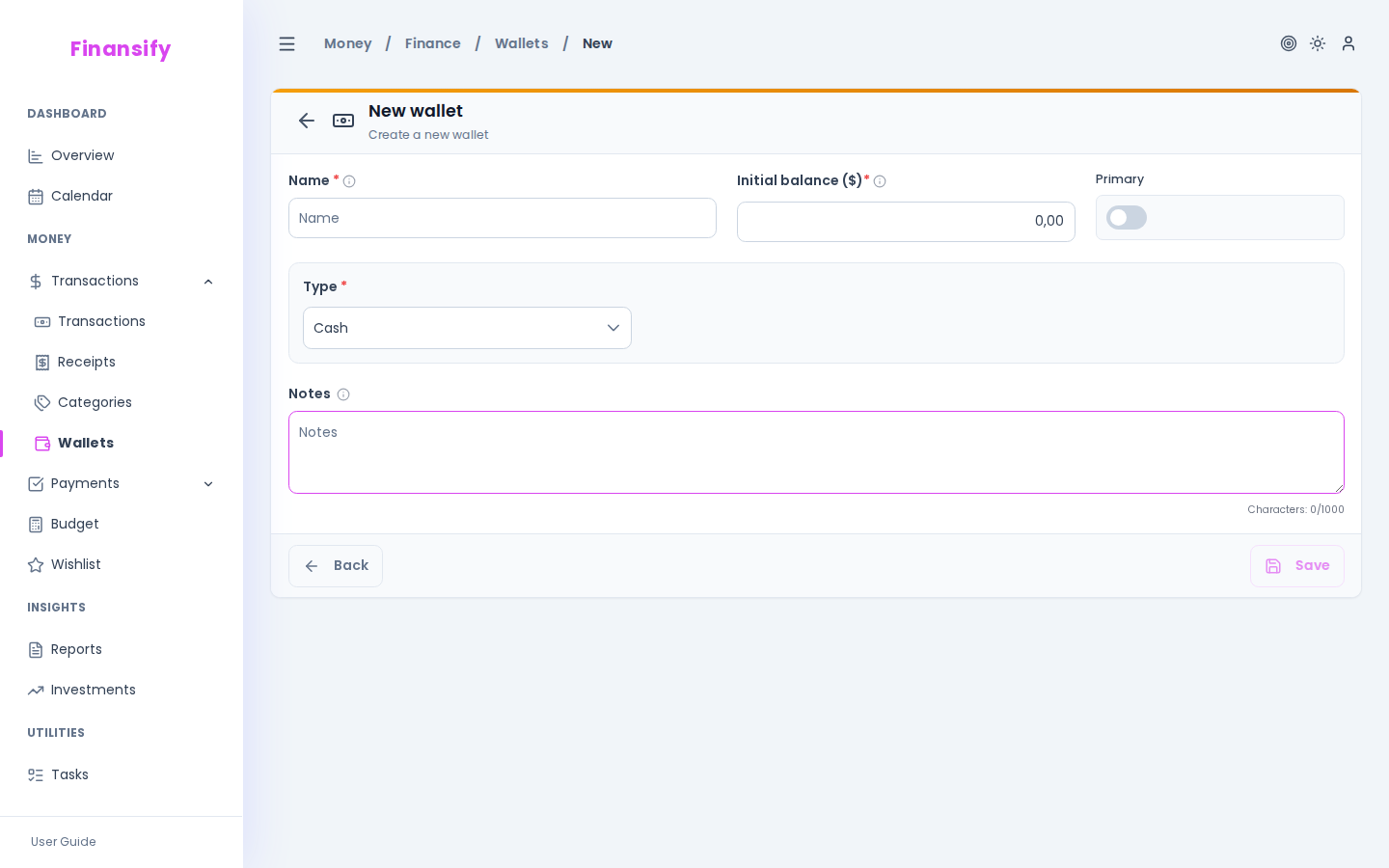 New wallet form
CSV Import Tip
If you select a bank that supports CSV import (MBank, PKO BP, Santander, Nest), a note will appear below the form indicating that you can import bank statements to this wallet.
Primary Wallet
You can mark one of your wallets as the primary wallet (star). The primary wallet:
- Is selected by default when creating new transactions
- Appears first on the list
- Is highlighted with a yellow star
To change the primary wallet — edit the new wallet and enable the "Primary wallet" toggle. The previous primary wallet will automatically lose that status.
Wallet Balance
The balance is the sum: initial balance + all income - all expenses. It updates automatically with each transaction. You don't need to recalculate it manually.
If you have wallets in different currencies, on the Dashboard you'll see them converted to your primary currency.
Editing and Deleting
Editing
Click on a wallet, then Edit. You can change the name, initial balance, bank, IBAN, and notes.
Deleting
When deleting a wallet, you need to decide what to do with the transactions assigned to it:
- Move transactions — select another wallet to transfer the transactions to
- Delete transactions — all transactions from this wallet will be deleted
 Wallet deletion dialog
Free Plan Limit
On the Free plan, you can have up to 3 wallets (e.g., main account + savings + cash). When you try to create a 4th wallet, you'll see a limit notification.
Premium: The Premium plan has no limit on the number of wallets.
See also:
- Transactions — transactions assigned to wallets
- CSV Import — importing bank statements to a wallet
- Financial Settings — primary currency and additional currencies
- Subscription — Free plan limits