Tasks (Todo)
The tasks module is a simple to-do list — not just for financial matters. Payments, errands, shopping, goals — all in one place. With a Kanban view for organization and a list view for quick checking off.
Premium: The tasks module is available exclusively on the Premium plan.
Two views
List view (table)
A classic task list in a table with columns:
- Status + priority (colored bar) + completion checkbox
- Title (crossed out if completed)
- Creation date
- Due date (red if overdue)
The table is sortable and paginated.
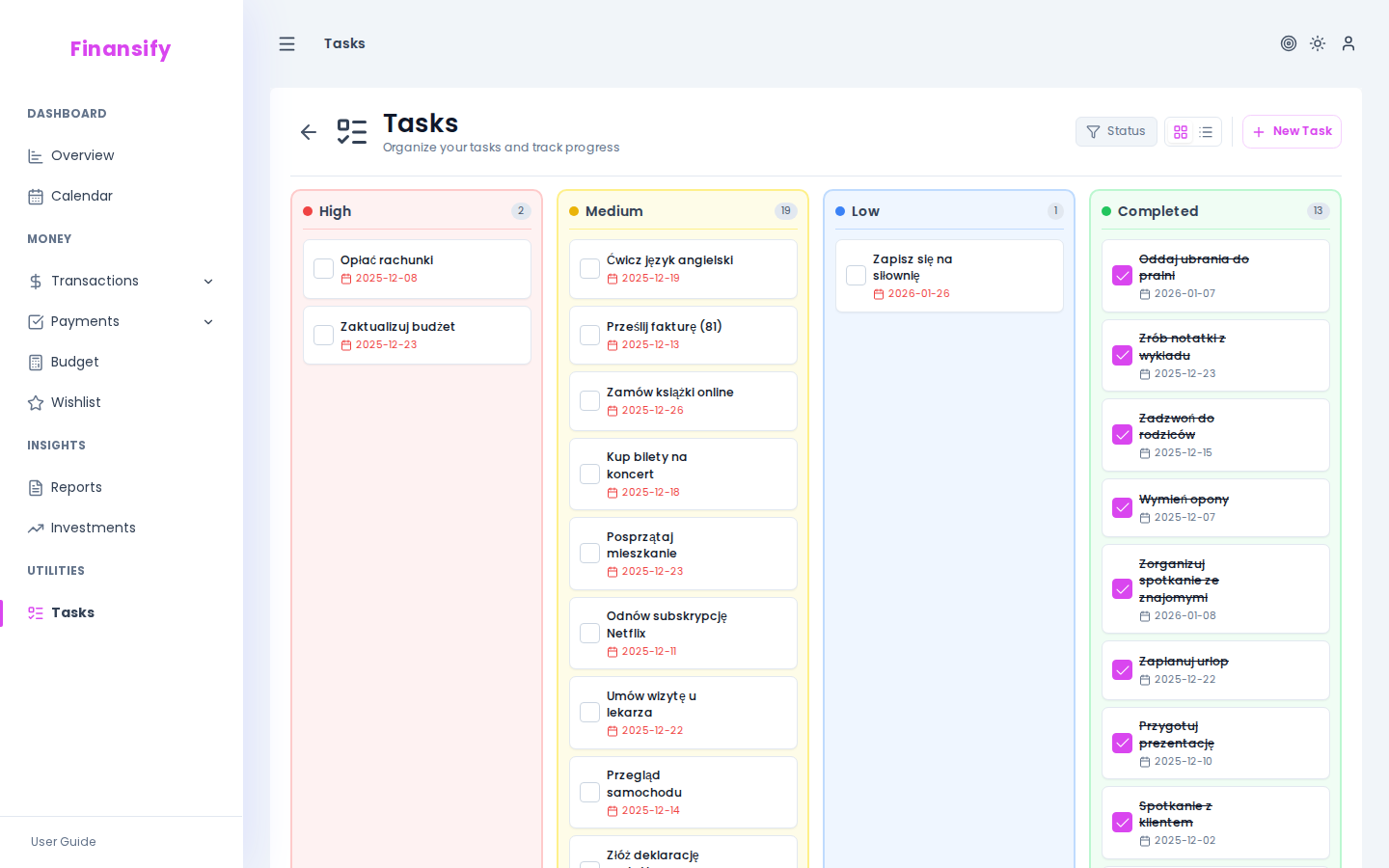 Task list
Kanban view
A board with columns — each column is a task group (e.g., "To Do", "In Progress", "Done"). You can drag tasks between columns.
On mobile, the Kanban view is the default — you scroll the columns horizontally.
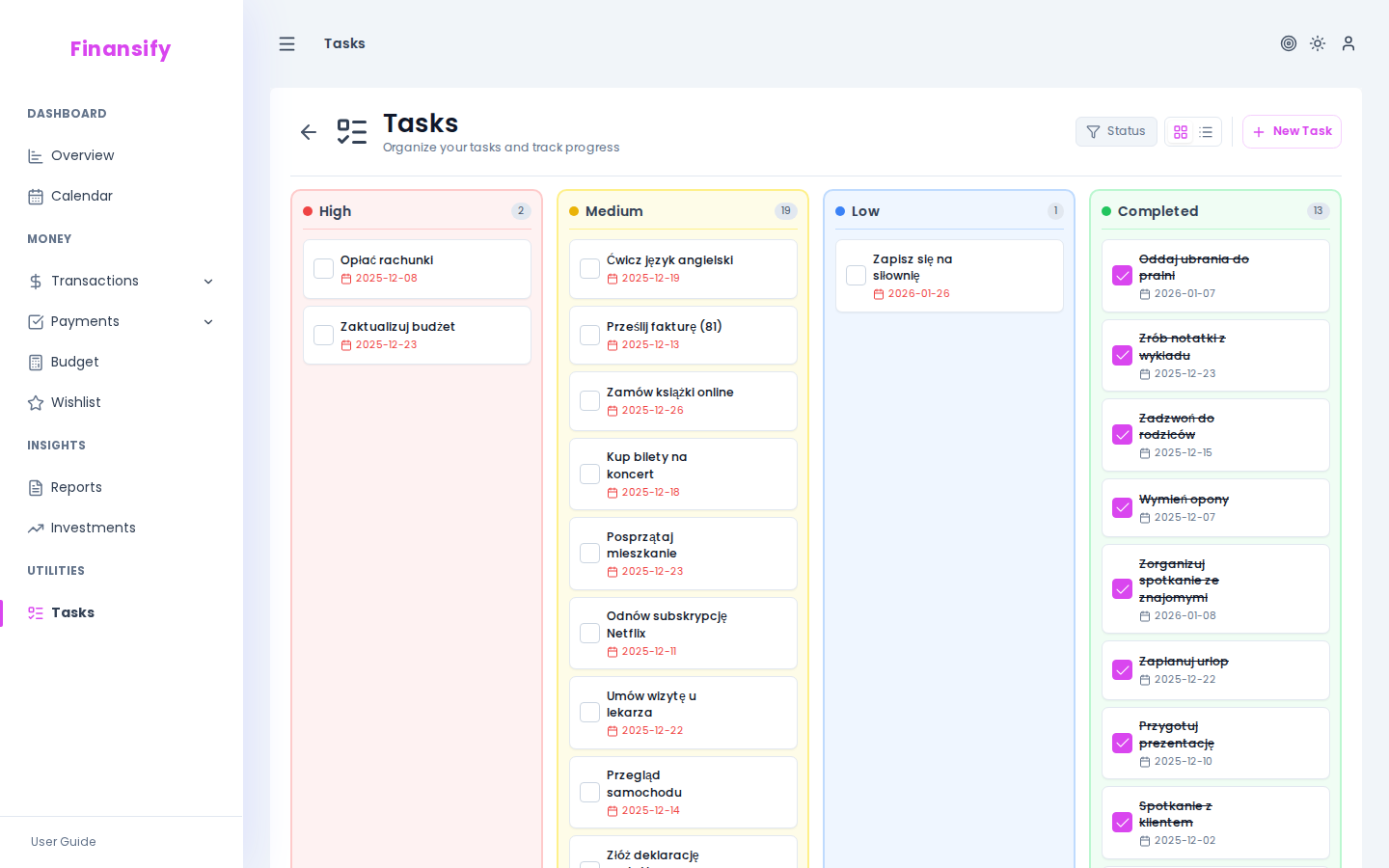 Kanban view
Creating a task
- Click New task
- Fill in the form:
| Field | Description | Required |
|---|---|---|
| Title | What needs to be done, e.g., "Pay the electricity bill" | Yes |
| Description | Task details | No |
| Priority | High / Medium / Low | No |
| Due date | Deadline for completion | No |
| Group | Which Kanban column to assign it to | No |
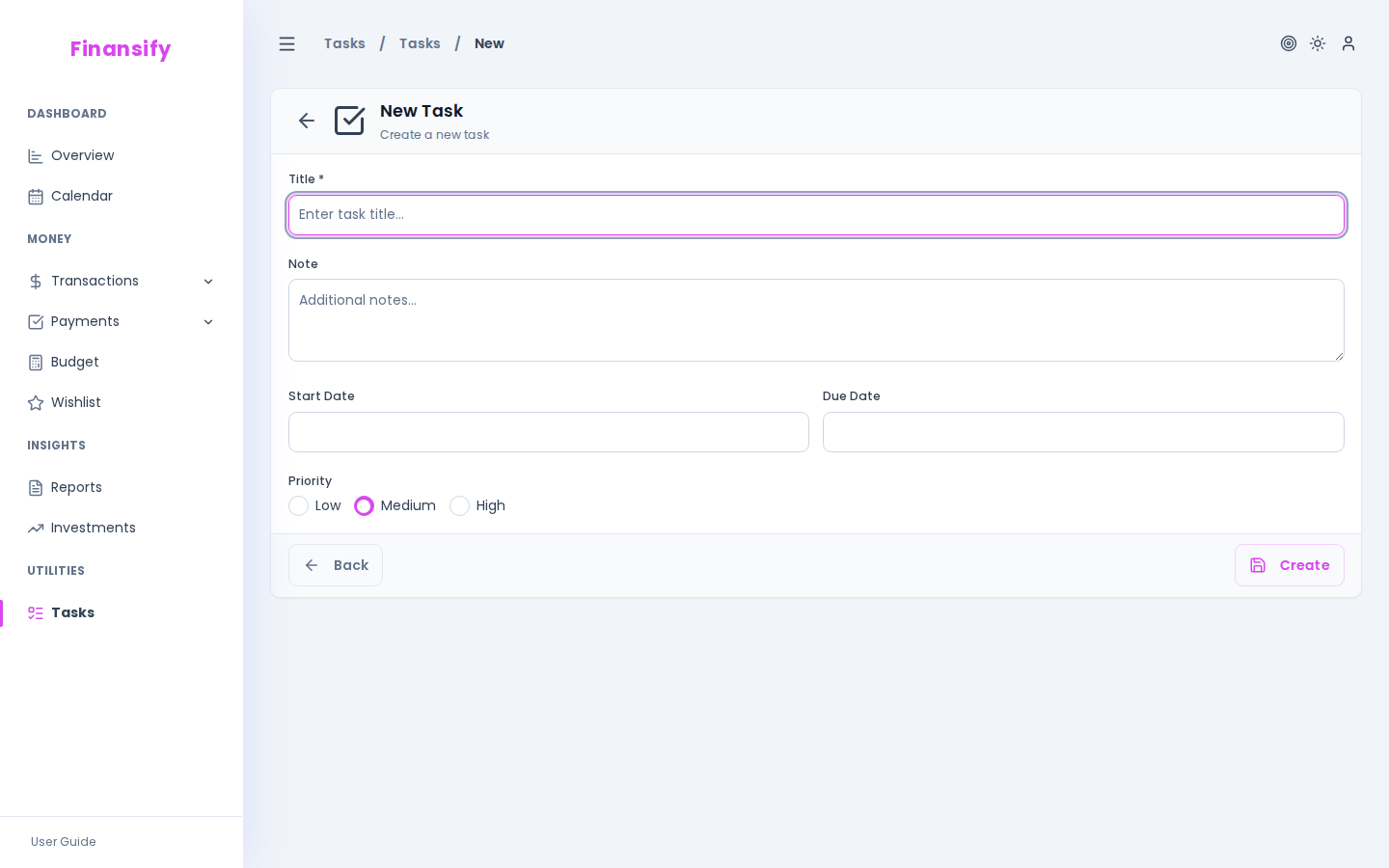 New task form
Task groups
Groups are the columns in the Kanban view. You can create your own groups (e.g., "Finances", "Home", "Work") or use the defaults.
Creating a group
- Click New group
- Enter a name, color, and description
Groups are displayed as columns in the order you set.
Priorities
Each task can have a priority:
| Priority | Color | When to use |
|---|---|---|
| High | Red | Urgent, can't wait |
| Medium | Yellow | Important but not critical |
| Low | Green | Worth doing sometime |
The priority is shown as a colored bar on the task card.
Completing a task
Two ways:
- In list view — click the checkbox next to the task. The title will be crossed out.
- In Kanban view — drag the card to the "Done" column (or equivalent).
Completed tasks can be filtered — use the Active / Completed toggle.
Overdue tasks
If a task's due date has passed and it's not completed — the date is displayed in red. Overdue tasks are easily visible in both the list and Kanban views.
Tasks on the calendar
Tasks with a set due date appear on the calendar as blue markers. This way, you can see them in the context of other financial events.
See also:
- Calendar — task deadlines on the calendar
- Subscription — the tasks module is a Premium feature