Subscription — Free vs Premium
Finansify offers two plans: Free (free forever) and Premium (with full automation and additional modules). The Free plan gives you full control over your finances — Premium adds convenience and advanced tools.
Free vs Premium
| Feature | Free | Premium |
|---|---|---|
| Transactions | Unlimited | Unlimited |
| Categories | Unlimited | Unlimited |
| Tags | Unlimited | Unlimited |
| Wallets | Up to 3 | Unlimited |
| Currencies | 2 (primary + 1 additional) | Unlimited |
| Budgets | Up to 2 active | Unlimited |
| Recurring payments | Unlimited (manual) | Unlimited + automation |
| Wishlist | Unlimited | Unlimited |
| Dashboard and calendar | Full | Full |
| CSV Import | Full (MBank, PKO BP, Santander, Nest) | Full |
| Receipts (OCR) | Unlimited scans, queued processing | Priority processing, full line items |
| Tag reports | - | Full, with forecasting |
| Tasks (Todo) | - | Full with Kanban |
| Investments | - | Full portfolio tracking |
| Email notifications | Yes | Yes + push, bot, weekly report |
How Much Does It Cost?
| Plan | Monthly | Annually | Savings |
|---|---|---|---|
| Free | 0 PLN | 0 PLN | — |
| Premium | 29.99 PLN | 290 PLN | ~19% (~70 PLN per year) |
For comparison: 29.99 PLN is less than one coffee per week. In return, you get full control over your finances.
When Will You See a Limit?
Finansify doesn't block you suddenly — when you approach a limit, you'll see a message with an upgrade suggestion:
- 4th wallet — "Add more wallets with Premium"
- 3rd budget — "Premium gives you unlimited budgets"
- 3rd currency — "Track more currencies with Premium"
- Reports — "Tag reports available in Premium"
- Tasks — "Manage tasks with Premium"
Limits are "soft" — you see a suggestion, not a wall. Everything you already have still works.
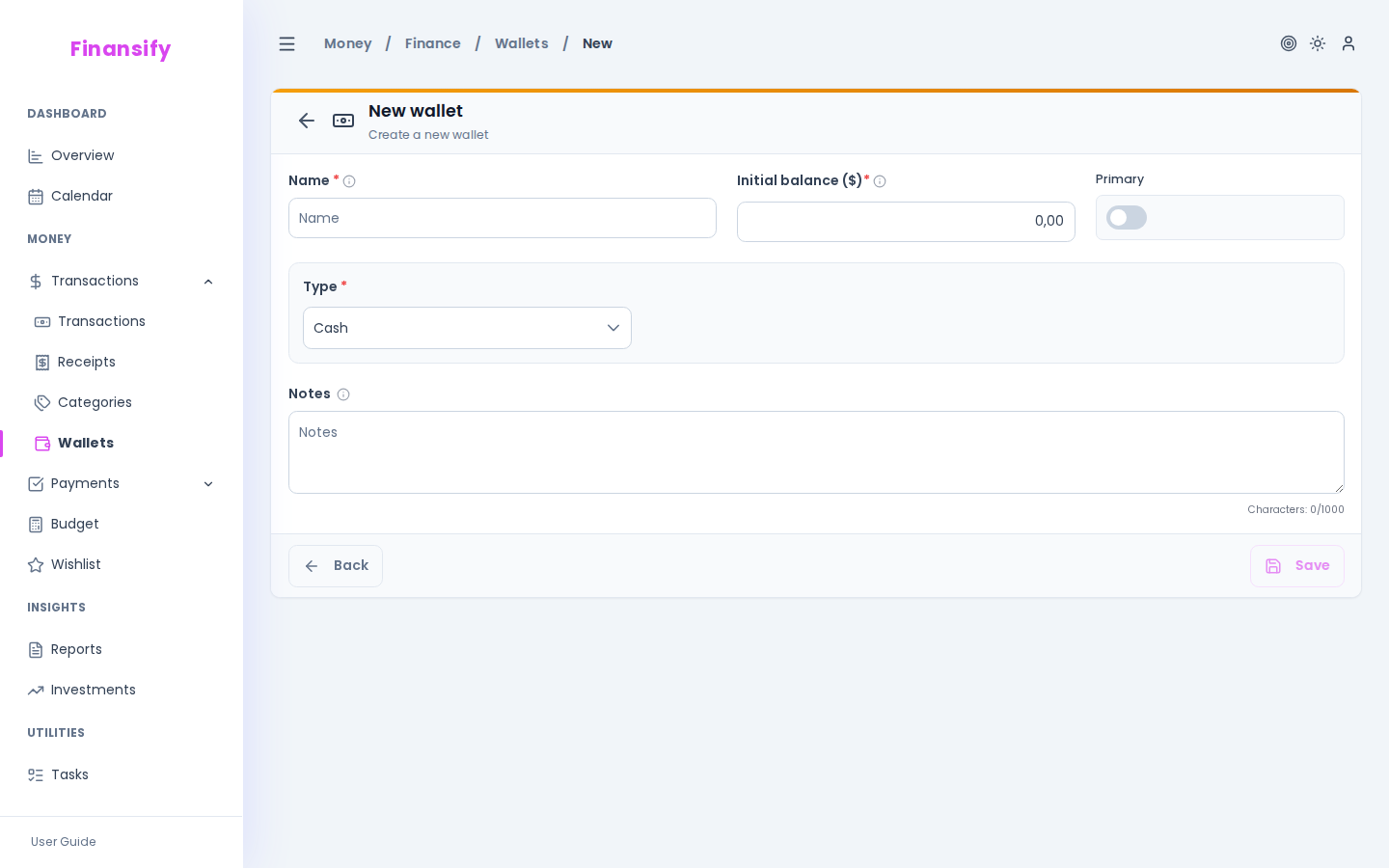 Wallet limit — upgrade message
How to Upgrade to Premium?
- Click on your profile in the sidebar
- Go to the Subscription section
- Click Upgrade to Premium
- Choose a plan — monthly or annual
- Complete the payment (card or BLIK)
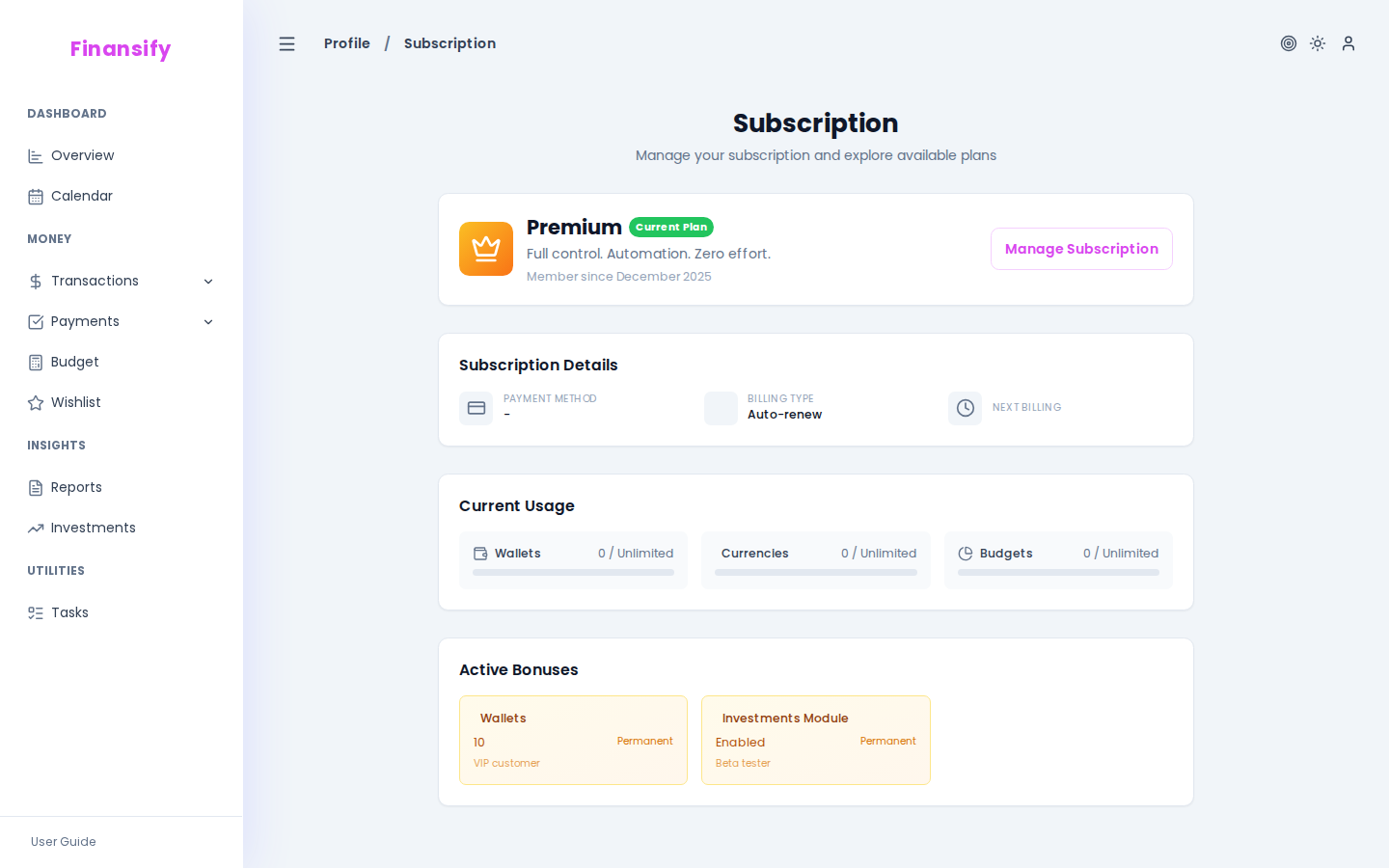 Free vs Premium plan comparison
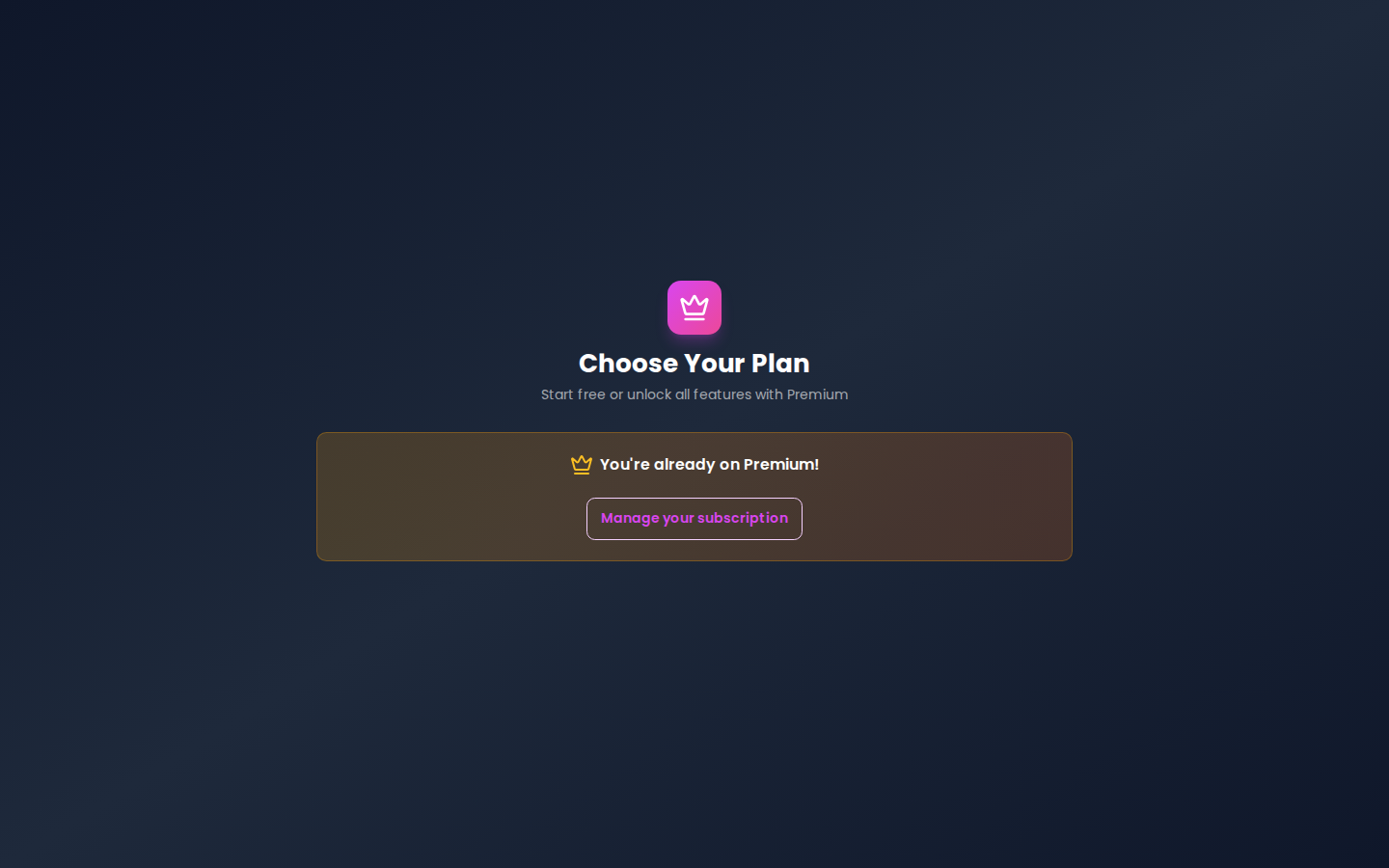 Payment screen
Managing Your Subscription
After purchasing Premium:
- You can check your current plan and renewal date in Profile → Subscription
- By clicking Manage subscription, you'll go to the payment portal where you can change your payment method or cancel
- After cancellation, Premium remains active until the end of the paid period — then you return to Free
- Your data is not deleted — the Free plan limits simply start applying
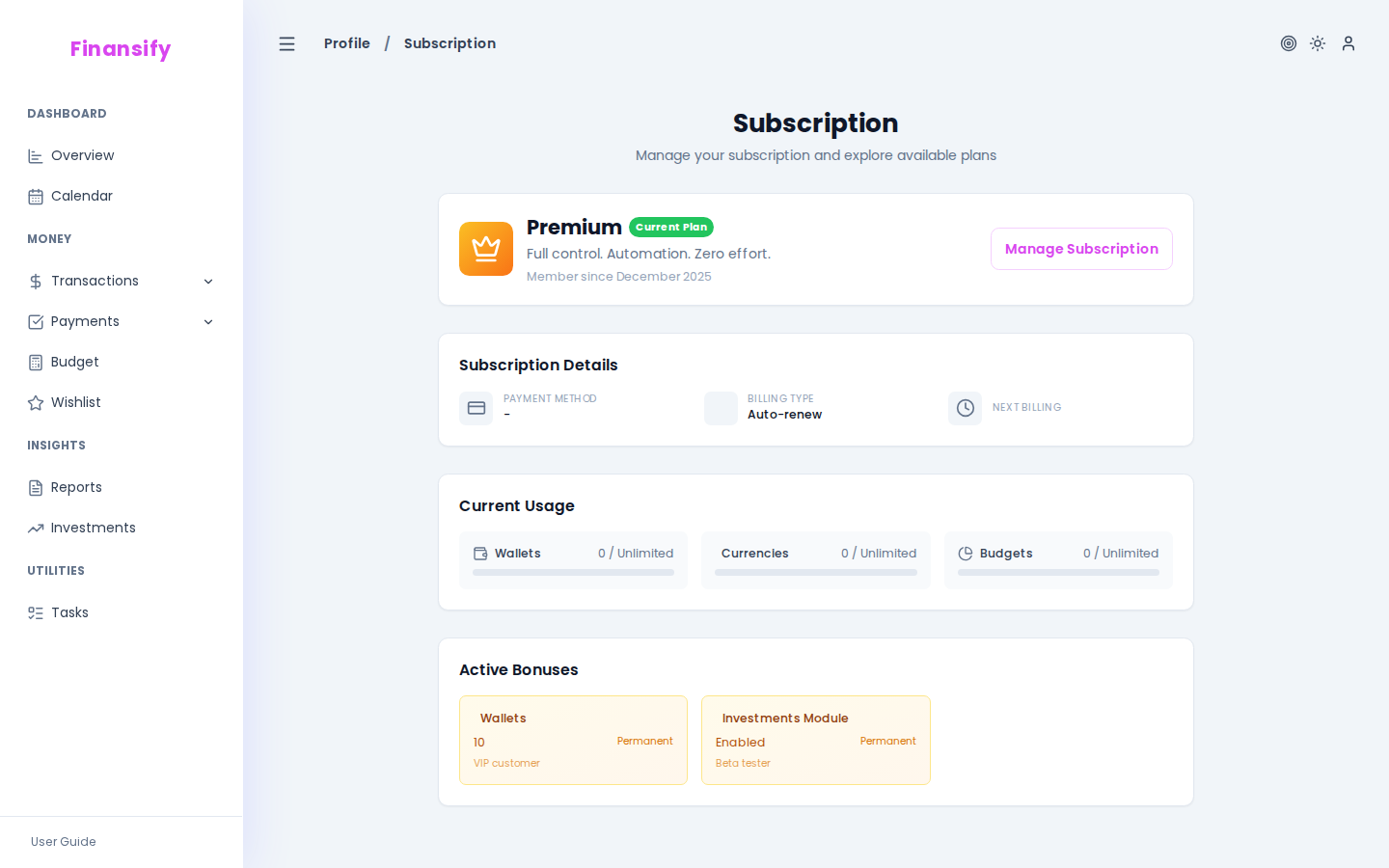 Subscription management
What Happens to My Data After Returning to Free?
Nothing bad! All your data stays. Simply:
- If you have more than 3 wallets — existing ones remain, but you can't create new ones
- If you have more than 2 budgets — existing ones work, but you can't add new ones
- Reports, Tasks, and Investments become unavailable (but data is not deleted — it will return after re-upgrading)
See also: