Receipts
Finansify can "read" your receipts and automatically extract the most important data — amount, date, merchant. Just take a photo or upload a PDF, and AI does the rest.
How does it work?
- You upload a receipt image (JPG, PNG) or a PDF file
- AI analyzes the image and extracts data: amount, date, merchant
- Finansify suggests matching it to an existing transaction or proposes creating a new one
- You approve or correct the result
[VIDEO: Screencast (~15s) — uploading a receipt photo → processing animation → result with extracted data]
Uploading receipts
There are several ways to upload a receipt:
From the Receipts page
- Go to Finance → Receipts
- At the top of the page you'll see a drag & drop zone
- Drag a file or click to browse your disk
- Accepted formats: images (JPG, PNG) and PDF
- You can upload multiple files at once
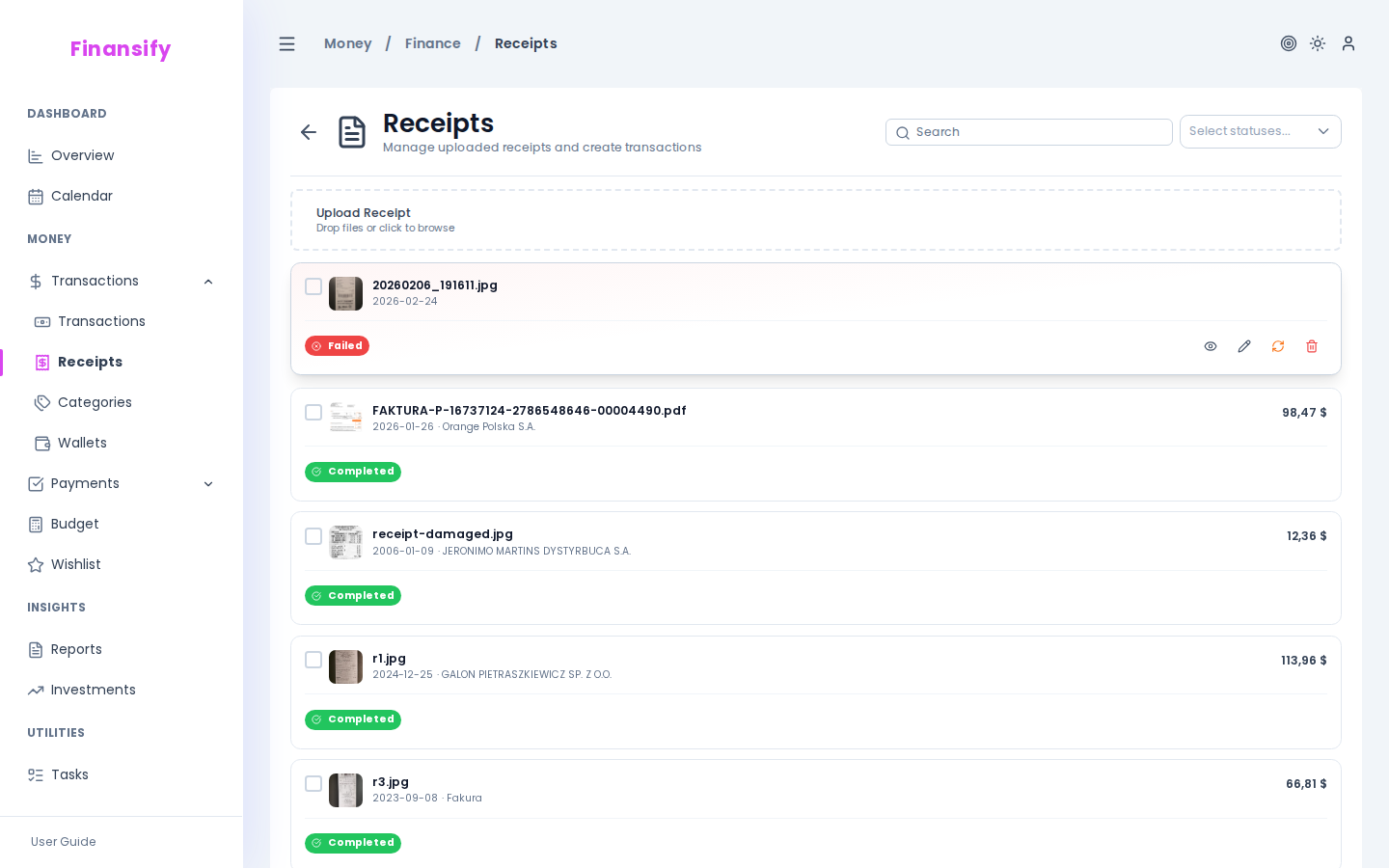 Receipts page
From the Dashboard
On the Dashboard in the "Financial overview" widget you'll find a receipt zone — drag and drop directly from your desktop.
From a transaction
You can attach a receipt directly to any transaction — click the paperclip icon and upload the file. Details in the Transactions → Receipts on transactions section.
Processing statuses
After uploading, a receipt goes through several stages:
| Status | Description |
|---|---|
| Pending | Receipt queued for processing |
| Processing | AI is currently analyzing the image |
| Processed | Data extracted successfully |
| Needs validation | AI is uncertain about the result — check manually |
| Error | Processing failed |
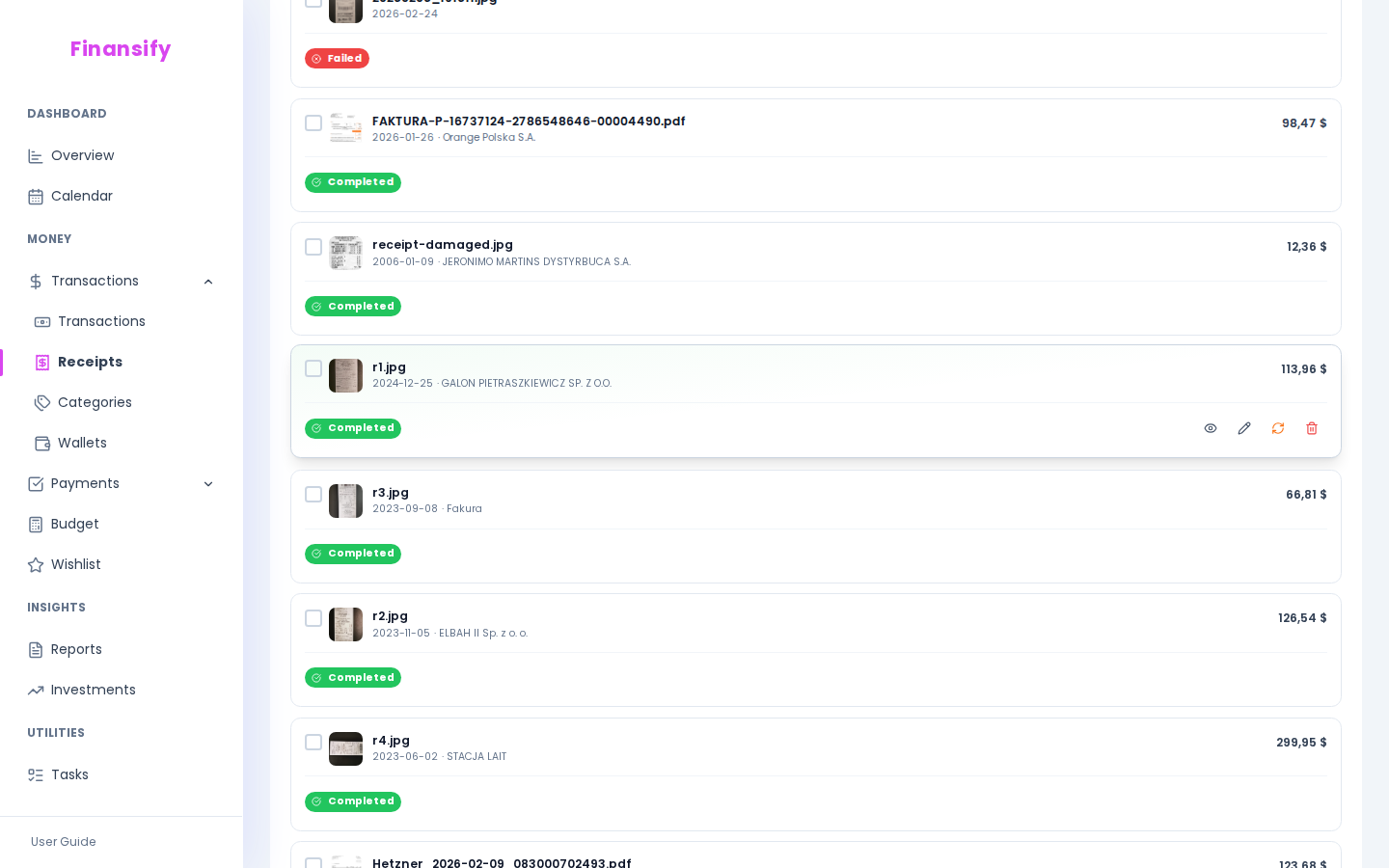 Receipt list with statuses
Extracted data
After processing, the receipt shows:
- Merchant — store/company name
- Gross amount — total amount due
- Date — purchase date
- Currency — detected currency
- Invoice number (if applicable)
Premium: On the Premium plan, AI also extracts full line items from the receipt — each product with its name, quantity, and price.
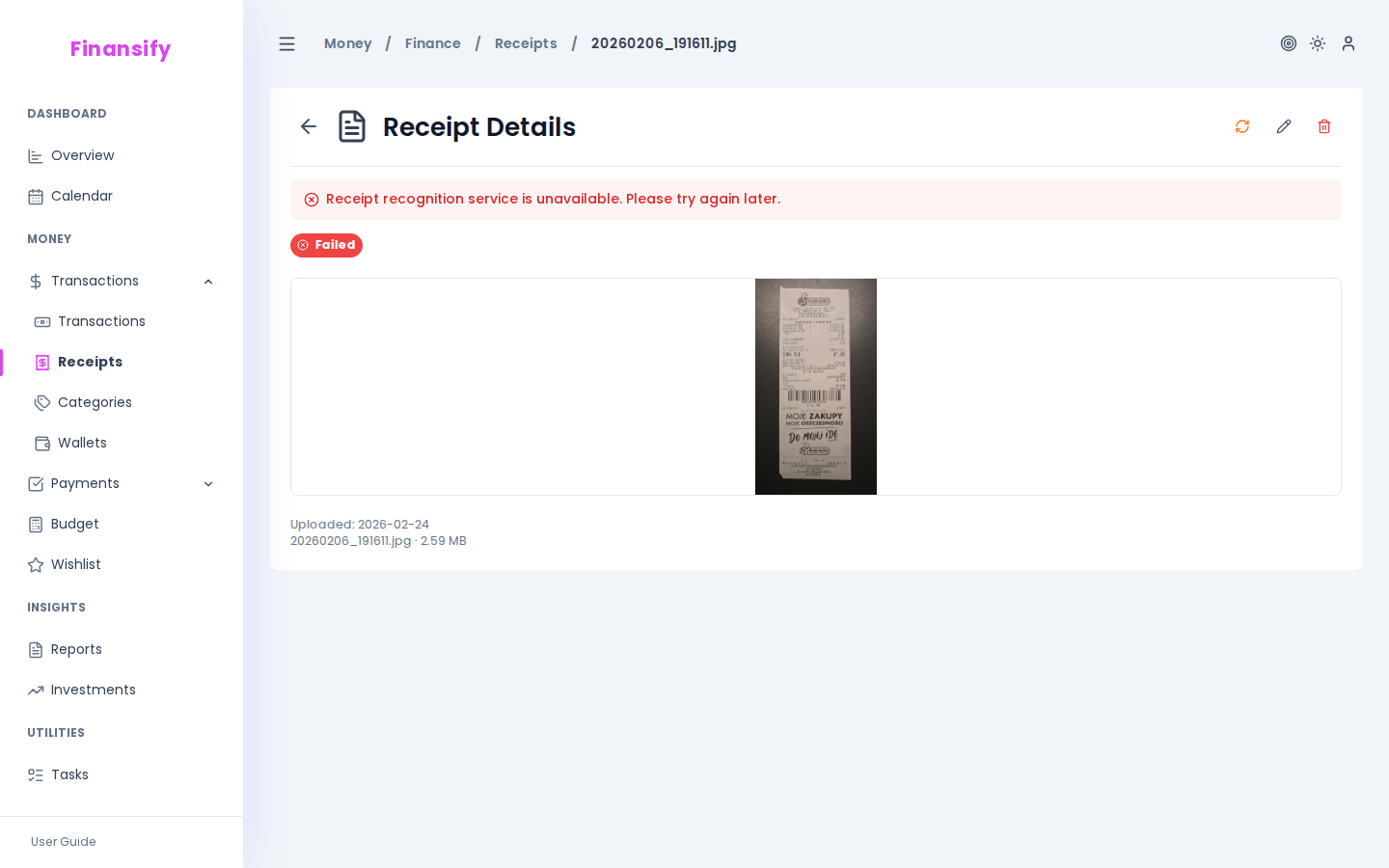 Receipt details
Matching to a transaction
After processing a receipt, Finansify looks for transactions that might match it (based on amount, date, and merchant).
Linking to an existing transaction
If AI found a matching transaction, you'll see a match suggestion — click to link the receipt to the transaction.
Creating a new transaction
If there's no matching transaction, you can create a new one directly from the receipt data — the transaction form will be automatically filled with the extracted data.
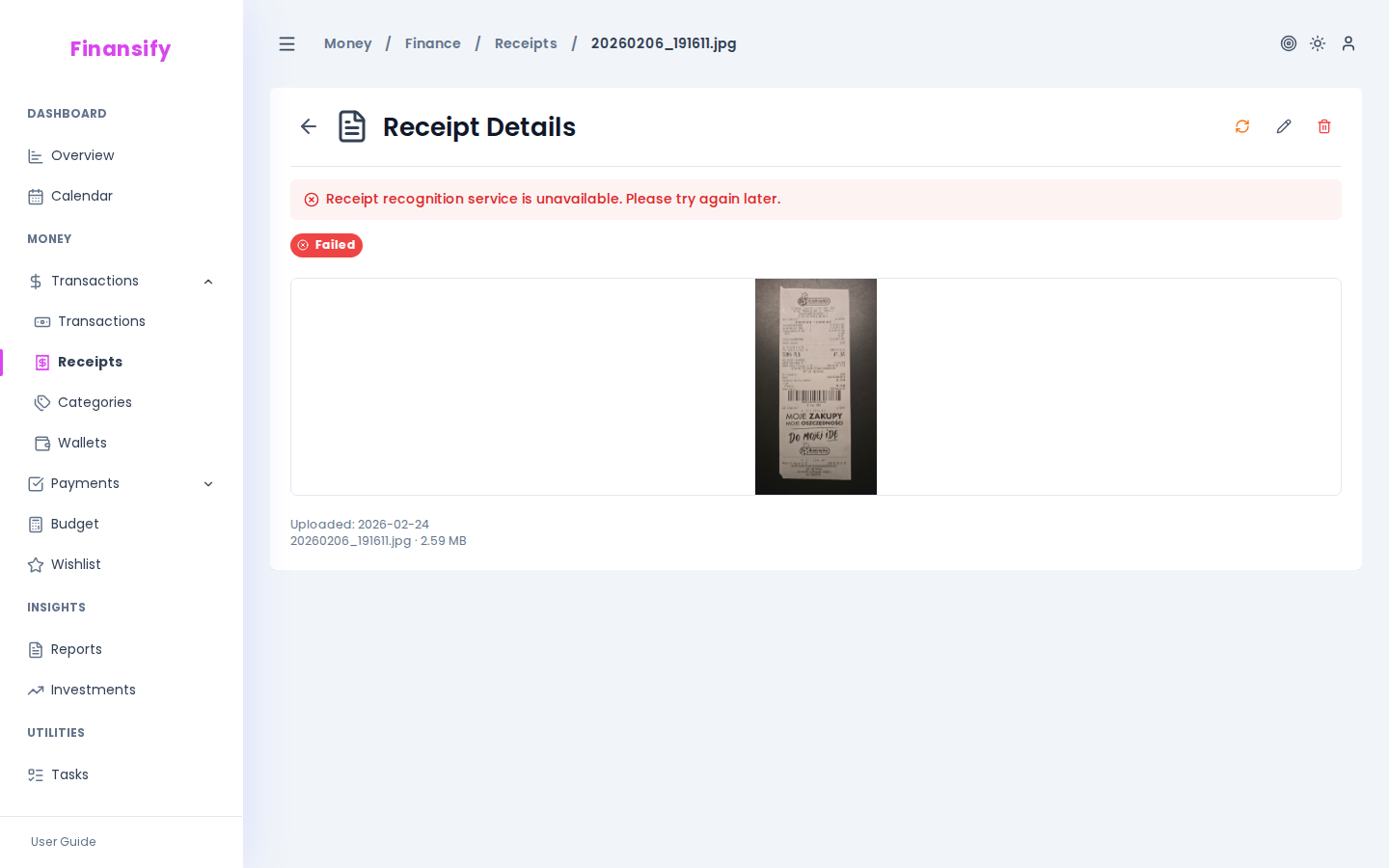 Receipt — match suggestions
Reprocessing
If processing failed or the result is unsatisfactory, you can click Reprocess — AI will try again.
Bulk operations
On the receipt list you can select multiple items and perform bulk operations:
- Delete — delete selected receipts
- Reprocess — reprocess selected receipts
Filtering receipts
| Filter | What it does |
|---|---|
| Search | Search by merchant name |
| Status | Show receipts with a selected status |
| Wallet | Filter by assigned wallet |
| Has transaction | Show only receipts linked/not linked to a transaction |
Processing speed
- Free — batch processing. Receipts are processed in bulk 1–2 times a day.
- Premium — priority processing. Receipt is analyzed almost immediately after upload.
Premium: Priority processing, full line items from the receipt (product names, quantities, prices).
See also:
- Transactions — attaching receipts to transactions
- Dashboard — uploading receipts from the Dashboard
- Subscription — differences in Free vs Premium processing