Application Tour
Finansify has a built-in interactive tour that shows you the most important features step by step. Instead of reading the documentation cover to cover, you can simply click "next" and see everything live.
How Does It Work?
The tour appears as a series of tooltips (small windows) pointing to specific interface elements. Each tooltip explains what the element is for and what you can do with it.
The tour is divided into segments — short sections dedicated to one feature:
- Welcome and navigation
- Wallets
- Transactions
- Categories
- Budgets
- ...and more
Each segment takes a few seconds — you don't have to go through all of them at once.
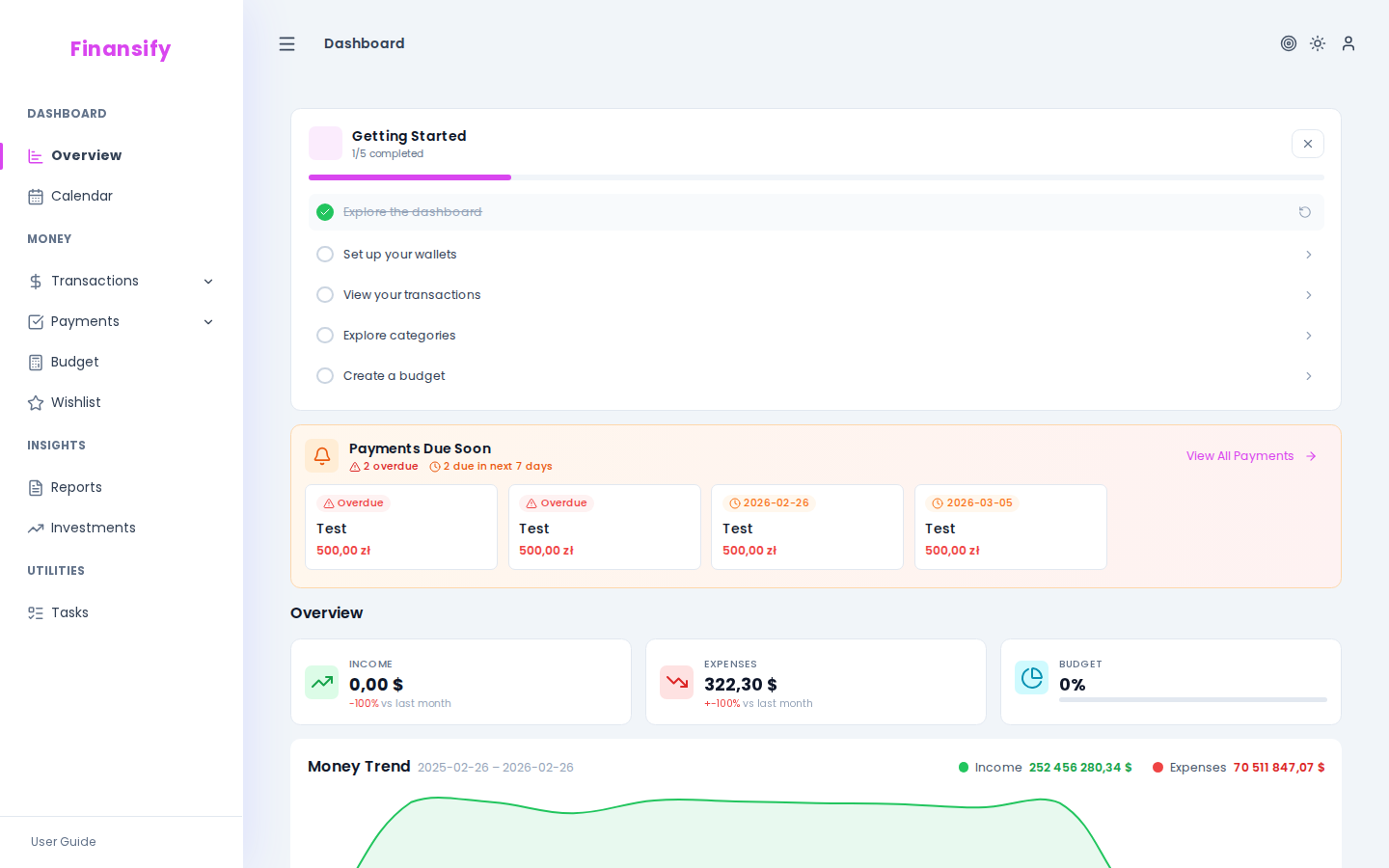 Guided tour tooltip
Dashboard Checklist
On the Dashboard, you'll find a progress list — a checklist showing which onboarding steps you've already completed and which are still waiting for you.
The list contains the most important actions for a new user:
- Welcome and getting to know the app
- Wallet setup
- First transaction
- Managing categories
- Setting up a budget
Each completed step is marked — so you can track your progress.
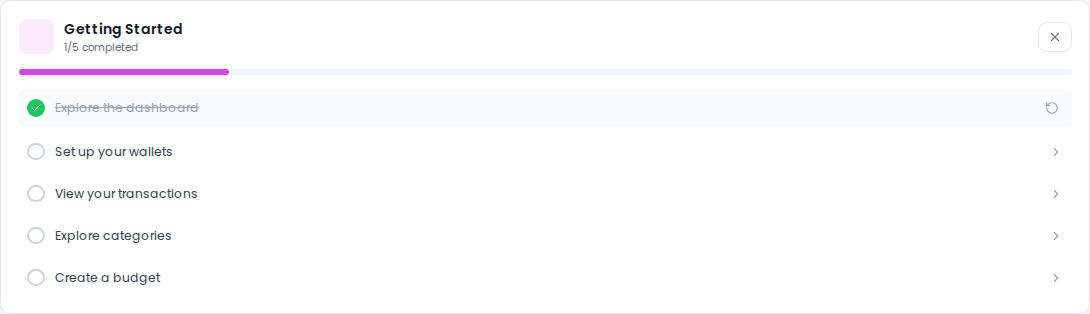 Onboarding checklist widget
Pausing and Resuming
You don't have to go through the entire tour in one sitting. You have several options:
- Next — proceed to the next step
- Pause — pause the tour; you can return to it later
- Skip this tour — skip the current segment, but keep access to the rest
- Disable tours — turn off the tour completely
If you paused the tour, a resume button will appear on the Dashboard — just click it to continue from where you left off.
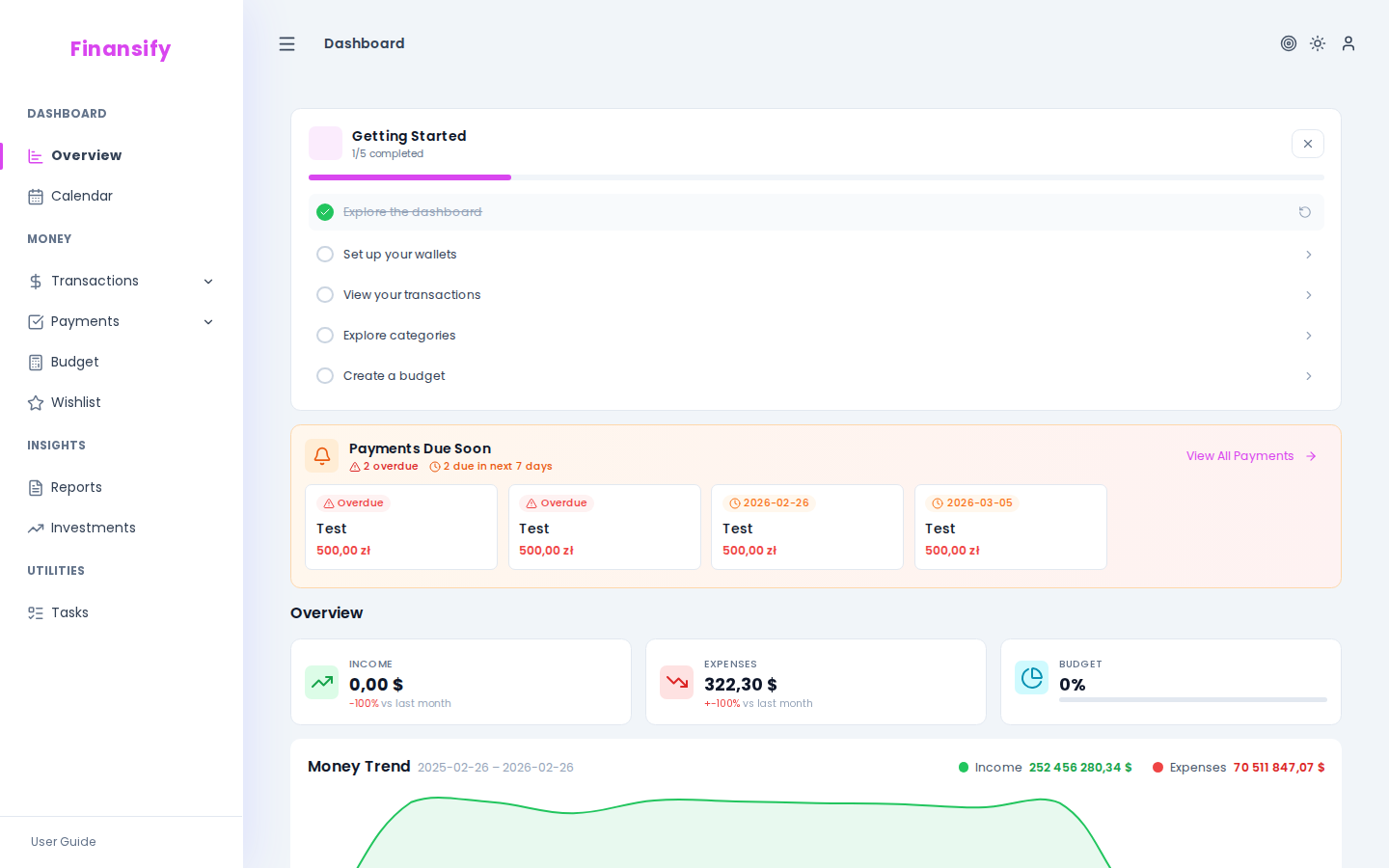 Continue tour button
How to Re-enable the Tour?
If you disabled the tour and want to start it again:
- Go to Settings → Appearance
- Find the tours option
- Turn it back on
The tour will start over, taking into account your previous progress.
Demo Data and the Tour
If you chose the demo data option in the Welcome Wizard, the tour will show sample data — wallets, transactions, budgets. This way you can see the features in action on real-looking data instead of empty screens.
See also:
- Welcome Wizard — what happens before the tour
- Dashboard — your main screen with the checklist
- Appearance — where to re-enable the tour